Hiển thị các bài đăng có nhãn SHSH Blobs. Hiển thị tất cả bài đăng

Thứ Tư, 31 tháng 10, 2012

How to Manually Submit Your Saved SHSH Blobs to Cydia (Windows)

How to Upgrade Your iPhone 4, 3GS Without Updating the Baseband (Mac)


These are instructions on how to manually submit your saved SHSH blobs to Cydia using RedSn0w for Windows.

Step One
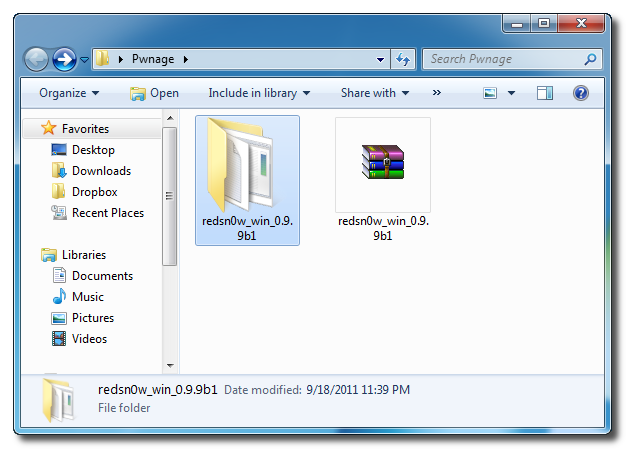
Create a folder on your desktop called Pwnage

Download the latest version of RedSn0w from here and place it in the Pwnage folder. 

Extract the RedSn0w zip file to the Pwnage folder.

Step Two
Right click or control-click the redsn0w application from the redsn0w folder we extracted earlier and chooseRun as Administrator from the popup menu that appears.


Step Three
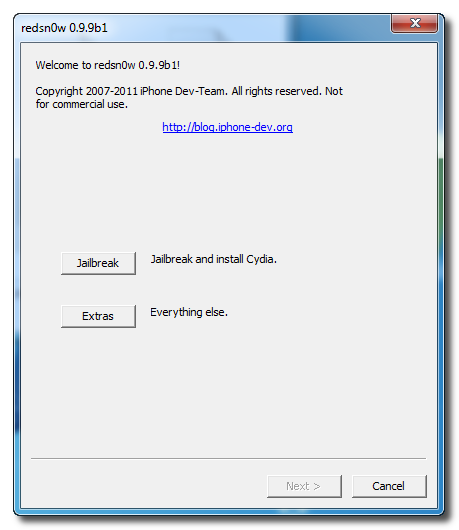
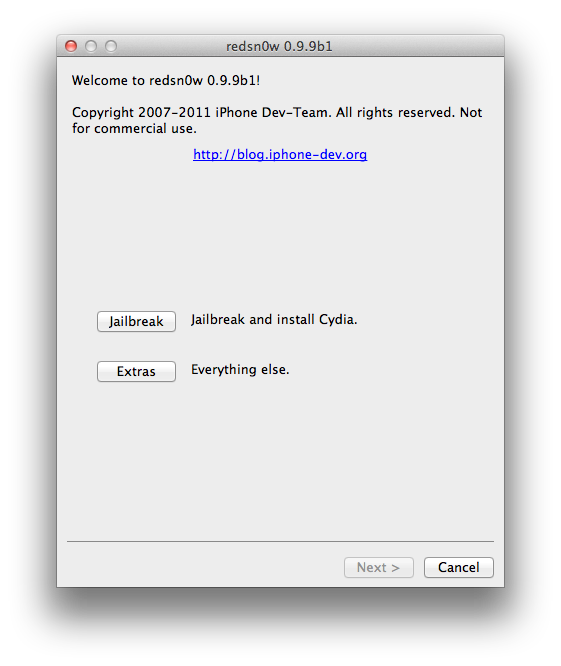
Click Extras from the main menu.

Step Four
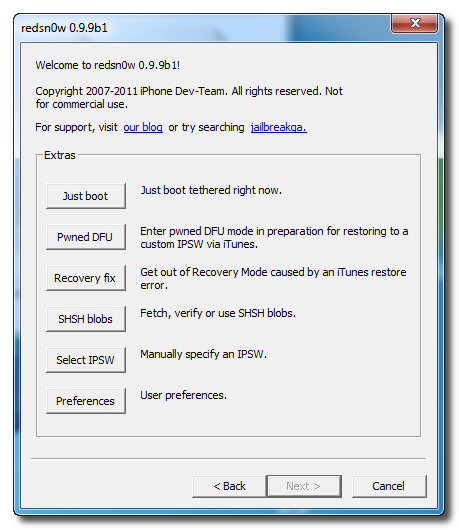
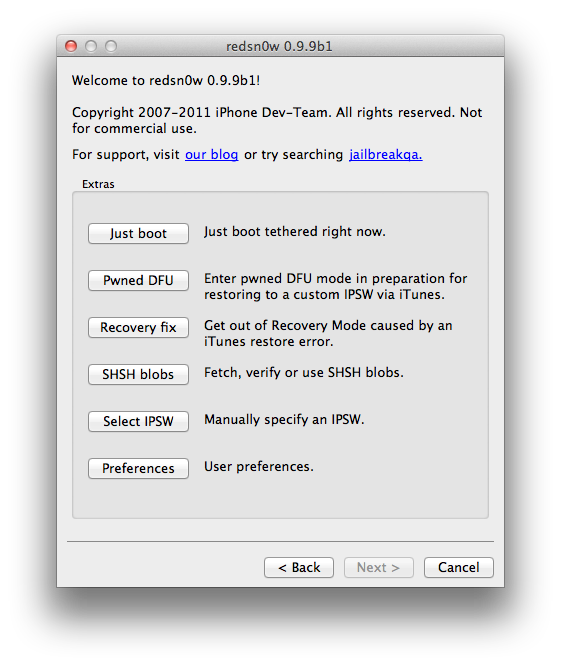
Select SHSH blobs from the Extras menu.

Step Five
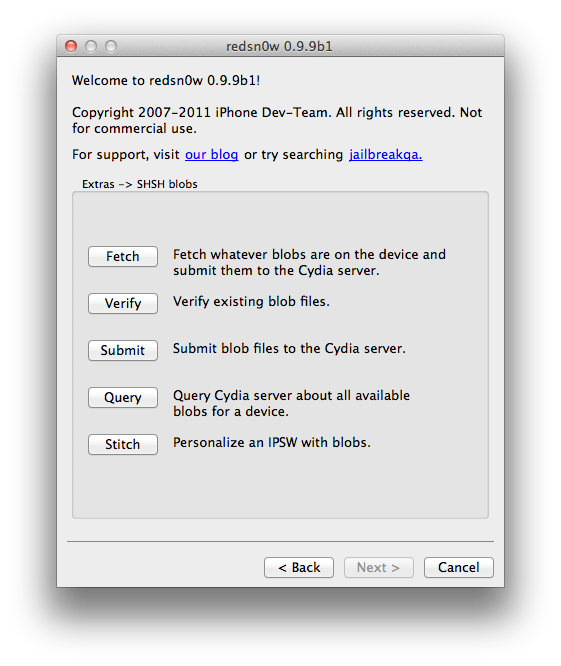
Click Submit from the SHSH blobs menu.

Step Six
Navigate to the location of your saved SHSH blobs in the window that appears. If you use Tiny Umbrella go to/Users/Username/.shsh to get the location of your SHSH blobs.

Highlight all the blobs and click the Open button.

Step Seven
RedSn0w will now submit your blobs to Cydia.

Step Eight
Once finished, Redsn0w will report the status of your submission.

How to Manually Submit Your Saved SHSH Blobs to Cydia (Mac)

How to Manually Submit Your Saved SHSH Blobs to Cydia (Mac)


These are instructions on how to manually submit your saved SHSH blobs to Cydia using RedSn0w.

Step One
Create a folder on your desktop called Pwnage

Download the latest version of RedSn0w from here and place it in the Pwnage folder. 

Extract the RedSn0w zip file by double clicking it.

Step Two
Right click or control-click the redsn0w application from the redsn0w folder we extracted earlier and chooseOpen from the popup menu that appears.

Step Three
Click Extras from the main menu.

Step Four
Select SHSH blobs from the Extras menu.

Step Five
Click Submit from the SHSH blobs menu.

Step Six
Navigate to the location of your saved SHSH blobs in the window that appears. If you use Tiny Umbrella you can press Command+Shift+G then enter /Users/Username/.shsh to get the location of your SHSH blobs.

Highlight all the blobs and click the Open button.

Step Seven
RedSn0w will now submit your blobs to Cydia.

Step Eight
Once finished, Redsn0w will report the status of your submission.

Thứ Ba, 20 tháng 9, 2011

How to Save Your iPhone SHSH Blobs Using RedSnow (Windows)


These are instructions on how to backup and save your iPhone SHSH Blobs to Cydia using RedSn0w for Windows. the mac version of this tutorial is here.
Step One
Create a folder on your desktop called Pwnage

Download RedSn0w from 0.9.9b1 here and place it in the Pwnage folder.

Extract the RedSn0w zip file into the same folder.


Step Two
Launch the redsn0w application from the redsn0w folder we just extracted.

**Windows 7 users should run the redsn0w executable mode as an administrator in Windows Vista compatibility mode. You can do this by right clicking the executable and selecting Properties from the contextual menu.


Step Three
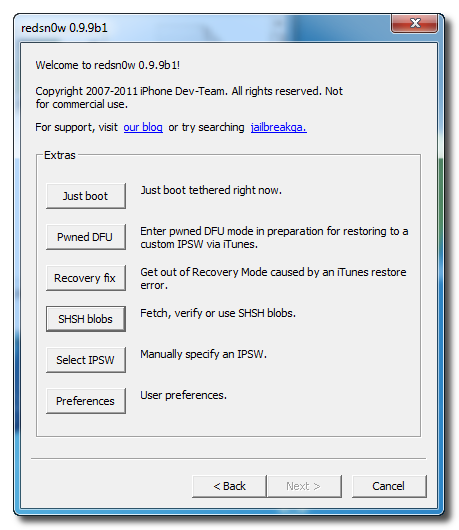
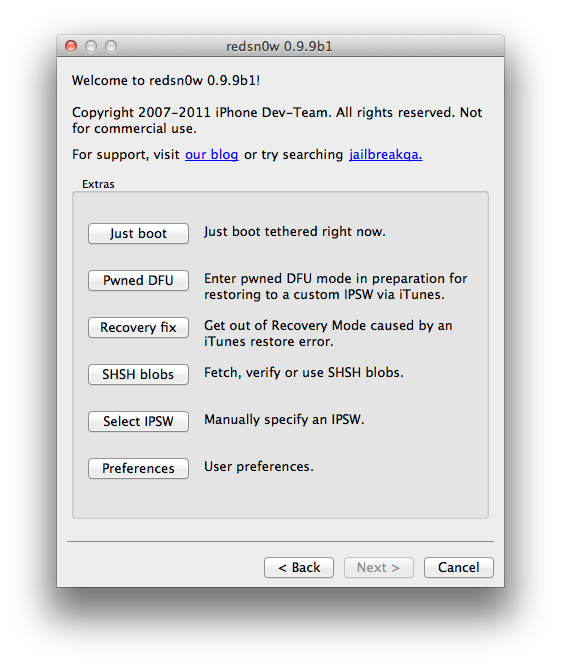
Once RedSn0w opens click the Extras button


Step Four
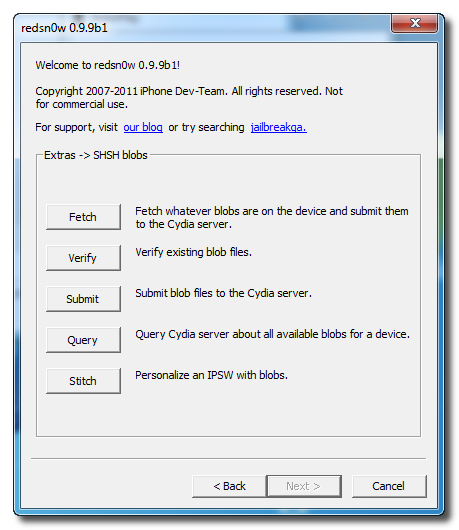
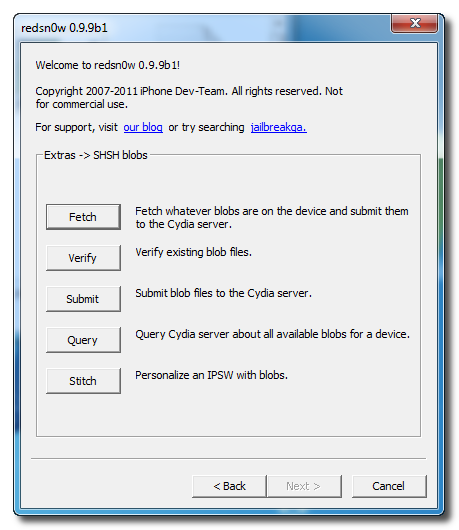
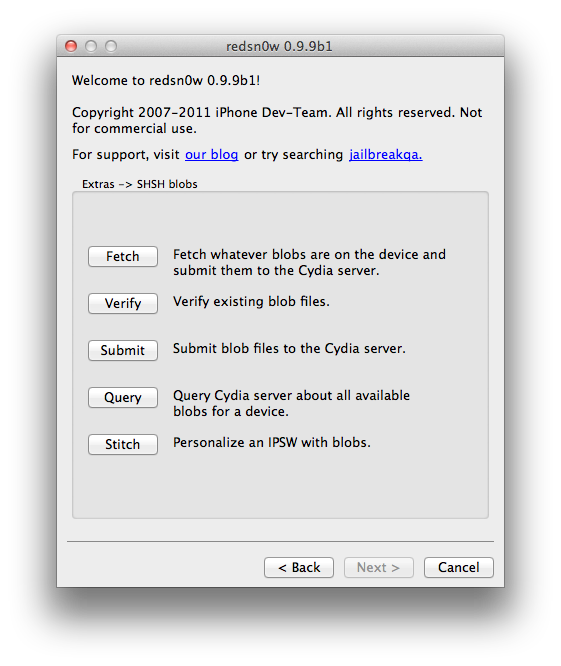
Click the SHSH blobs button from the Extras menu.


Step Five
Click the Fetch button to fetch the SHSH blobs on your device and send them to the Cydia server for storage.


Step Six
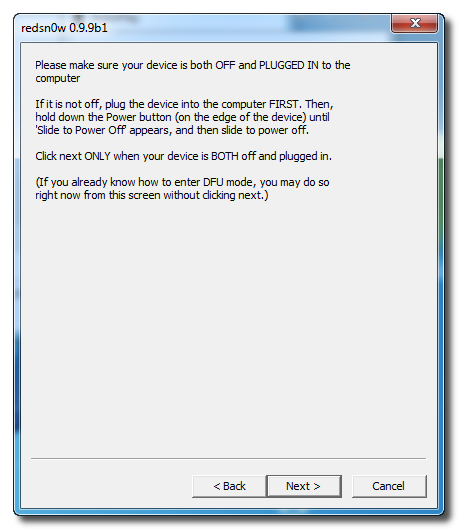
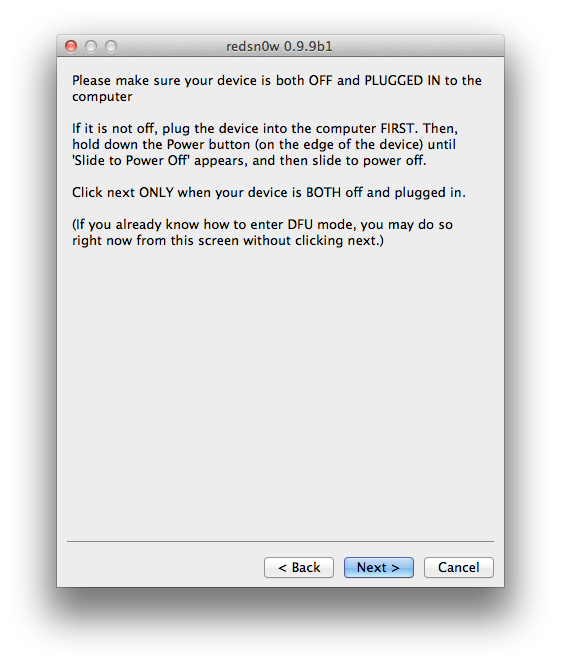
Please plug your iPhone into the computer and make sure its OFF then click the Next button


Step Seven
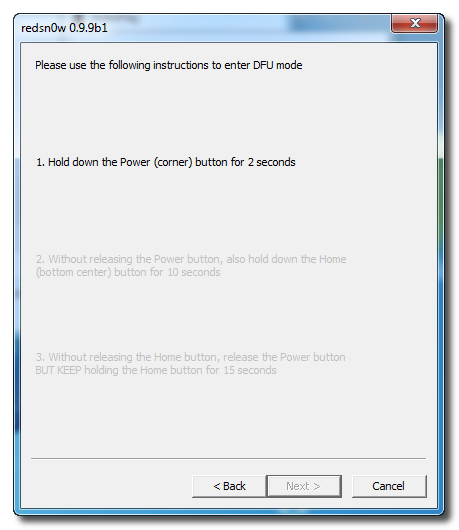
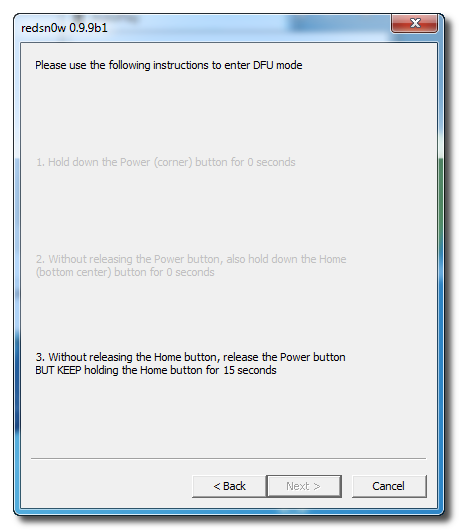
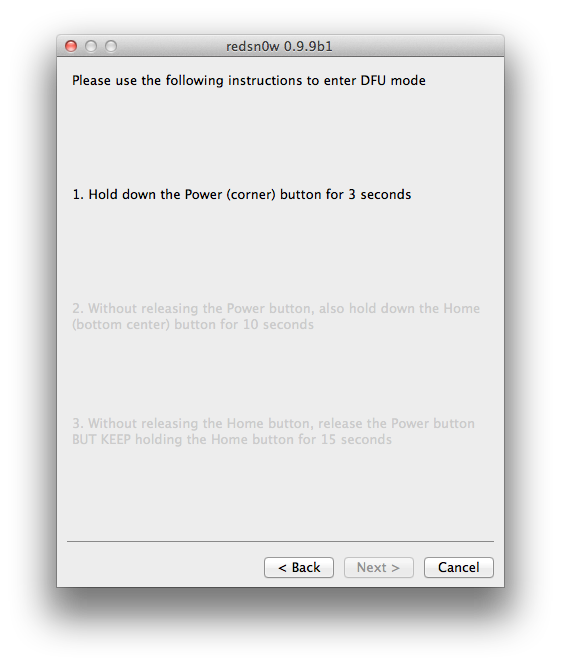
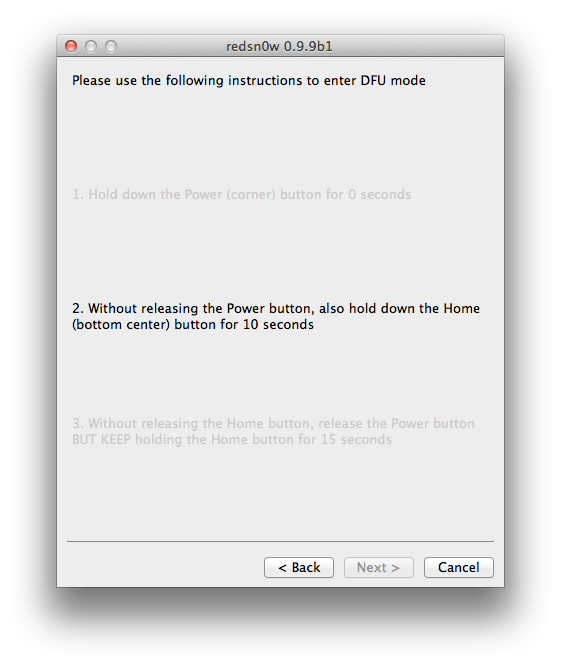
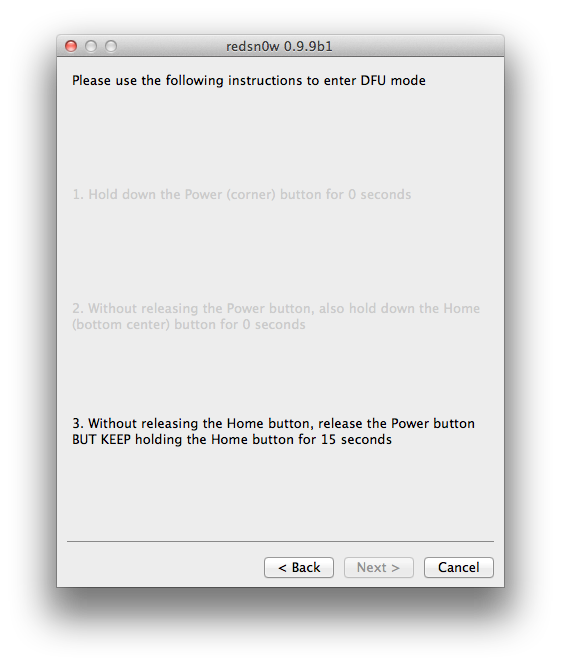
RedSn0w will now guide you through the steps to get into DFU mode.


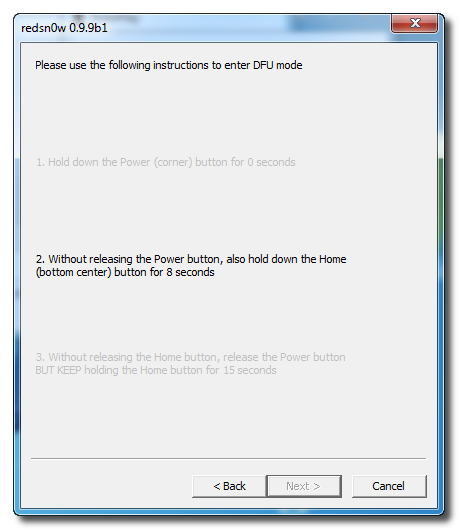
Hold down both the Home button and the Power button for 10 seconds.


Release the Power button and continue holding the Home button until RedSn0w detects the device.


Step Eight
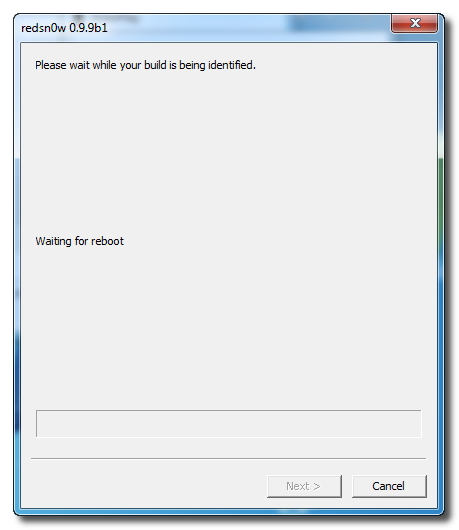
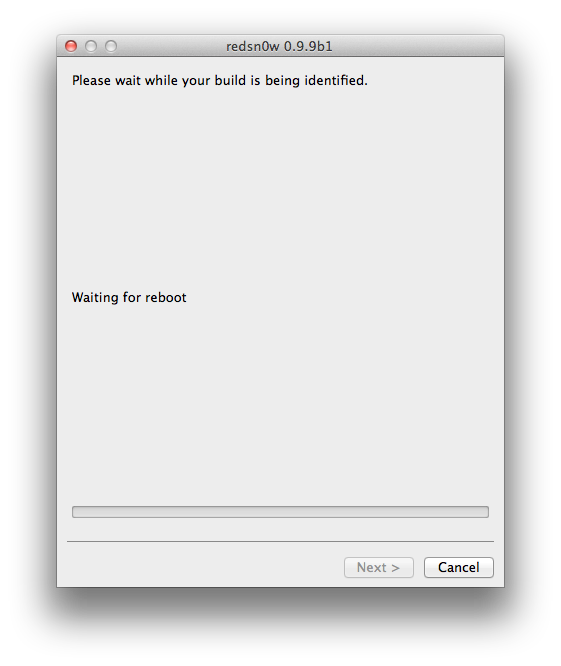
Your iPhone will now reboot


Step Nine
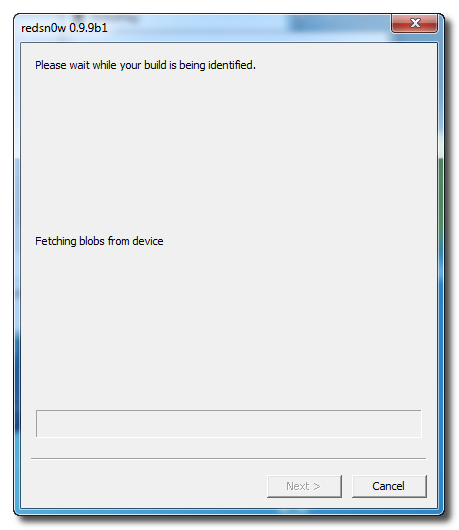
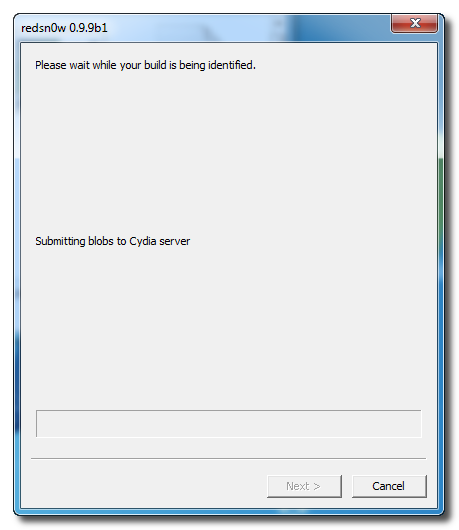
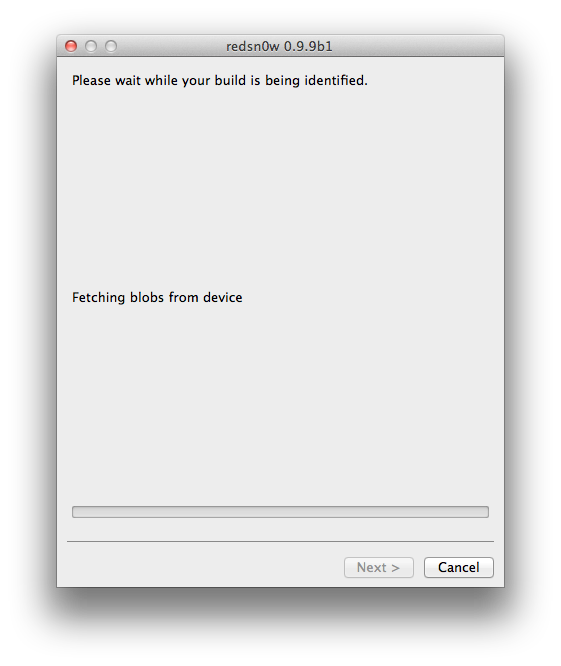
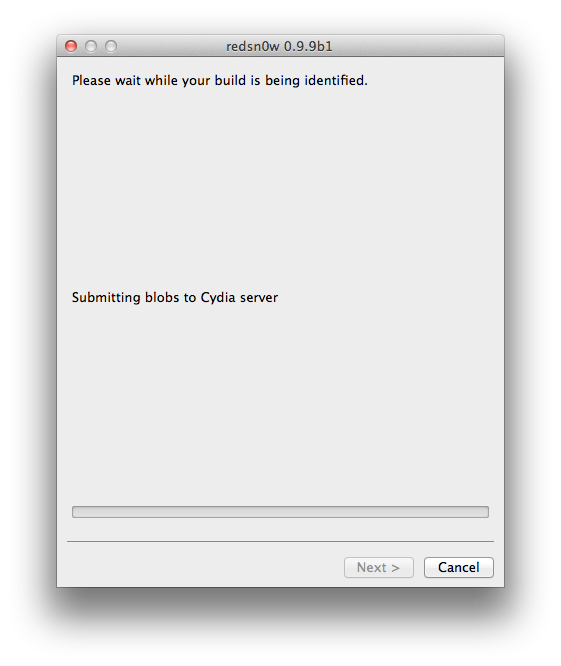
RedSn0w will then begin fetch the SHSH blobs from your device and submit them to Cydia.


Step Ten
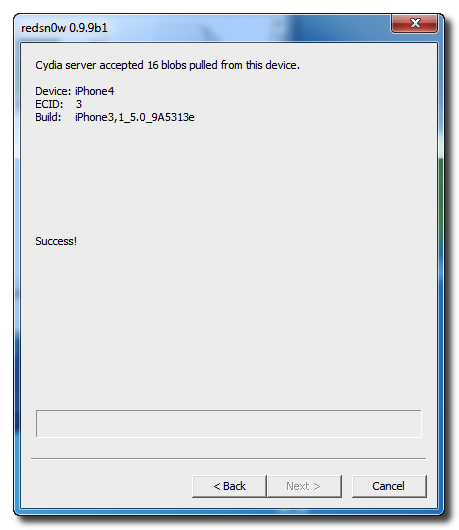
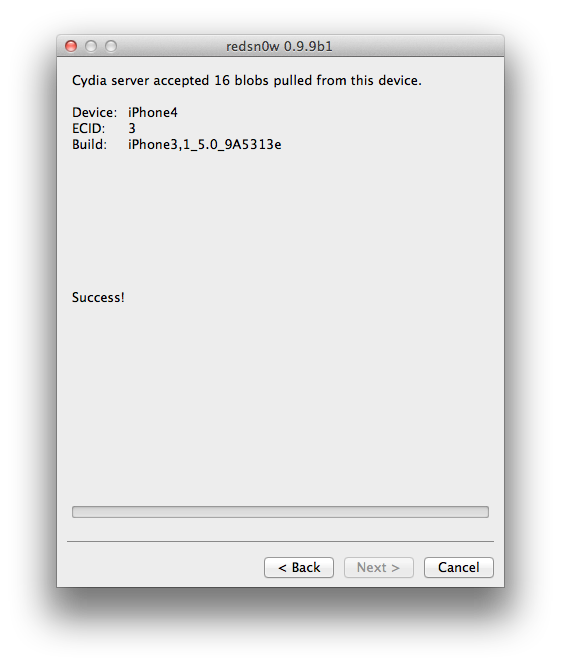
Once this is complete you will be notified that your submission was a success. Click the Back button to return to RedSn0w.


Step Eleven
Click the SHSH blobs button and then click the Query button to make sure Cydia has your blobs saved.


Step Twelve
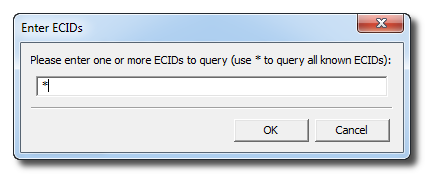
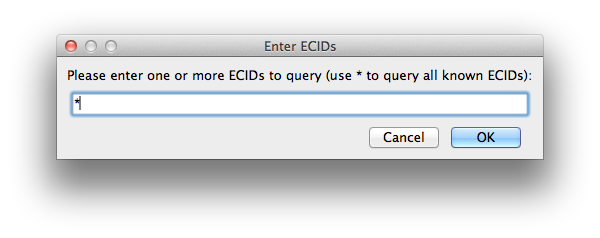
Enter * into the ECID textfield and click OK to check all your devices.


Step Thirteen
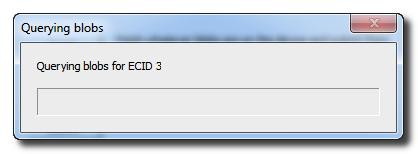
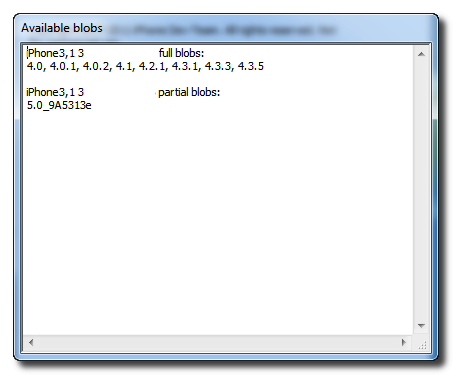
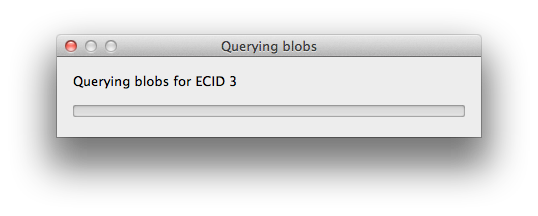
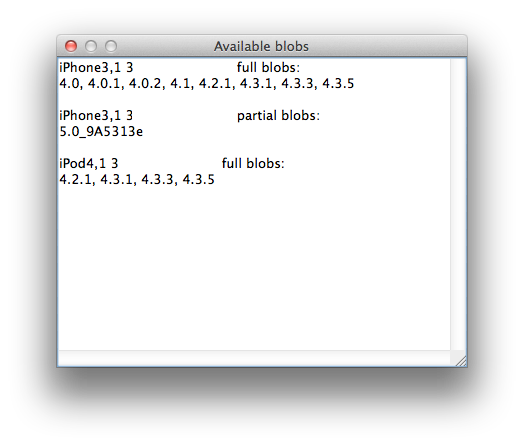
RedSn0w will now query Cydia and display the list of stored blobs.


Important:
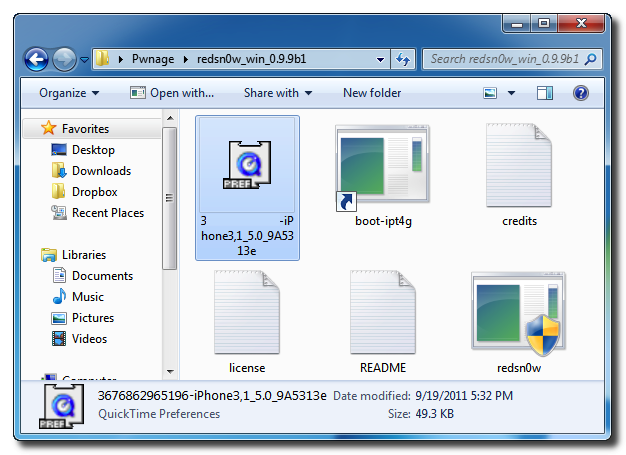
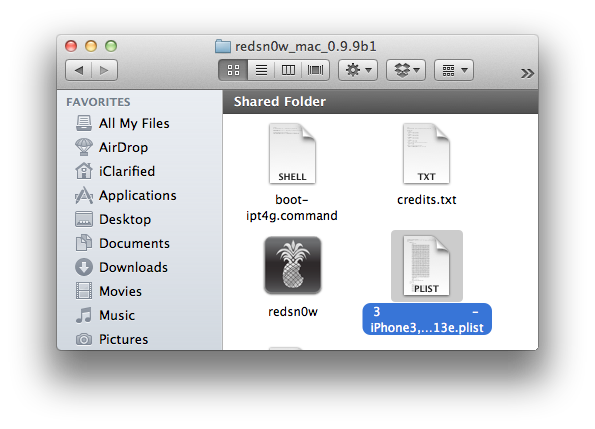
RedSn0w also saves your blobs in a plist located within the RedSn0w folder. We would recommend keeping these for added safety.

How to Save Your iPhone SHSH Blobs Using RedSnow (Mac)


These are instructions on how to backup and save your SHSH Blobs to Cydia using RedSn0w.

Step One
Create a folder on your desktop called Pwnage

Download RedSn0w from 0.9.9b1 here and place it in the Pwnage folder.

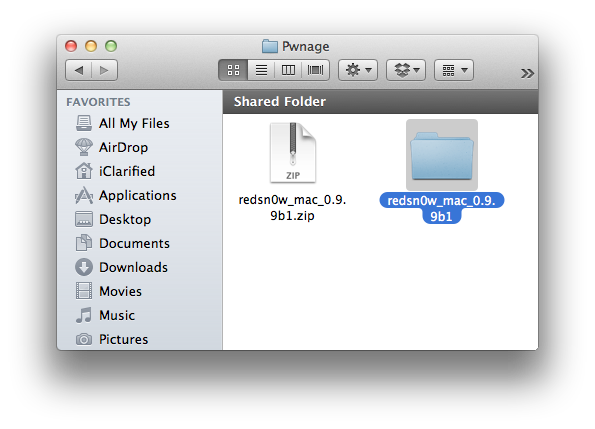
Extract the RedSn0w zip file by double clicking it.


Step Two
Launch the redsn0w application from the redsn0w folder we just extracted.


Step Three
Once RedSn0w opens click the Extras button


Step Four
Click the SHSH blobs button from the Extras menu.


Step Five
Click the Fetch button to fetch the SHSH blobs on your device and send them to the Cydia server for storage.


Step Six
Please plug your iPhone into the computer and make sure its OFF then click the Next button


Step Seven
RedSn0w will now guide you through the steps to get into DFU mode.


Hold down both the Home button and the Power button for 10 seconds.


Release the Power button and continue holding the Home button until RedSn0w detects the device.


Step Eight
Your iPhone will now reboot


Step Nine
RedSn0w will then begin fetch the SHSH blobs from your device and submit them to Cydia.


Step Ten
Once this is complete you will be notified that your submission was a success. Click the Back button to return to RedSn0w.


Step Eleven
Click the SHSH blobs button and then click the Query button to make sure Cydia has your blobs saved.


Step Twelve
Enter * into the ECID textfield and click OK to check all your devices.


Step Thirteen
RedSn0w will now query Cydia and display the list of stored blobs.


Important:
RedSn0w also saves your blobs in a plist located within the RedSn0w folder. We would recommend keeping these for added safety.

Bài đăng phổ biến