Thứ Hai, 4 tháng 4, 2011

How to Jailbreak Your iPhone 4 Using RedSn0w (Mac) [4.3.1]


These are instructions on how to jailbreak your iPhone 4 on the 4.3.1 firmware using RedSn0w for Mac.

Make sure not to update to iOS 4.3.1 if you need an unlock as one is not yet available!

Step One
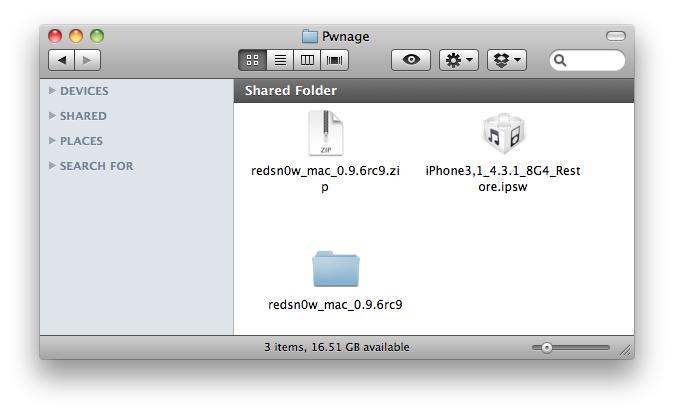
Create a folder on your desktop called Pwnage

Download RedSn0w from here and place it in the Pwnage folder. Likewise, download the latest 4.3.1 firmware from below and place it in the same folder.

4.3.1 (4 GSM): iPhone3,1_4.3.1_8G4_Restore.ipsw

Extract the RedSn0w zip file by double clicking it.


Step Two
Connect your iPhone to the computer and launch iTunes.


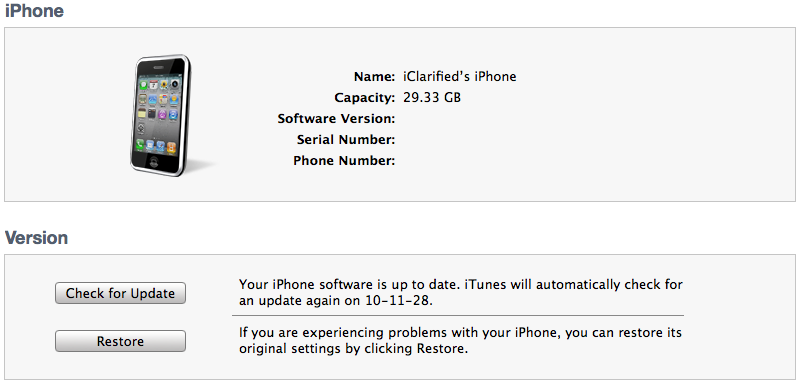
Select your iPhone from the list of devices on the left. Now hold down Option and click the Restore button. Restore is preferred as it won't create any wasted space on your iPhone.


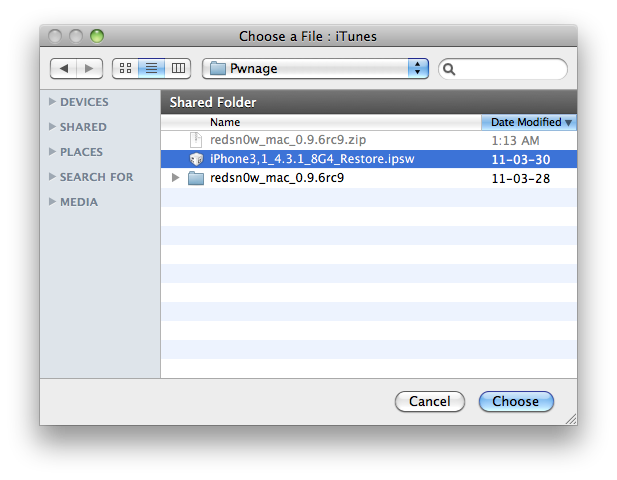
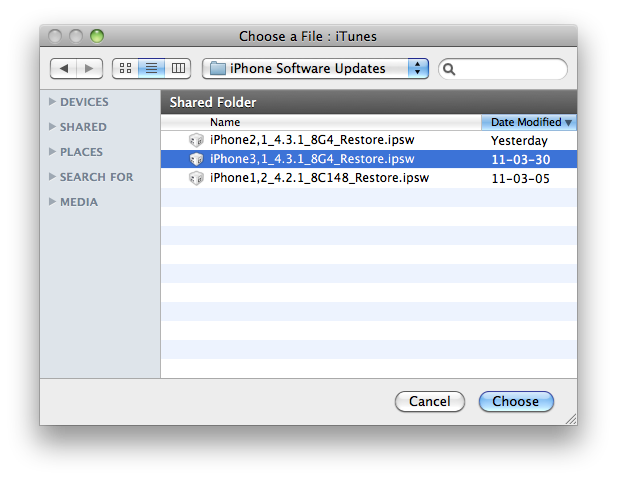
Navigate to the Pwnage folder on your desktop and select the 4.3.1 firmware ipsw. Click the Choose button to continue.


Step Three
Once iTunes has finished updating your iPhone to the desired firmware open the Pwnage folder on your desktop and launch the redsn0w application from the redsn0w folder we extracted earlier.


Step Four
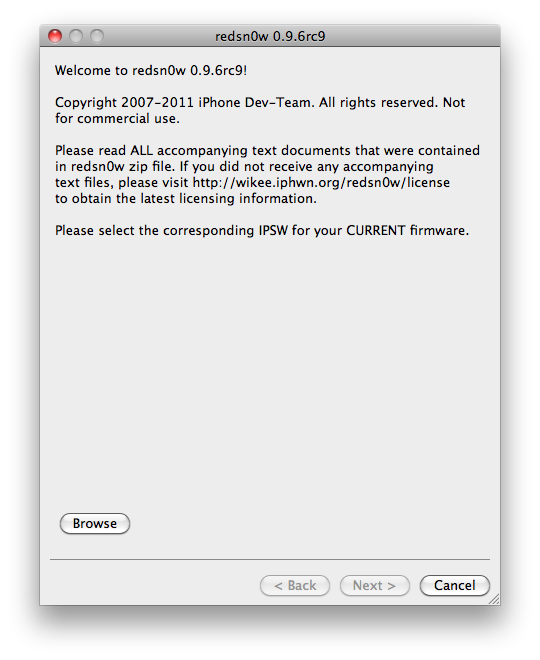
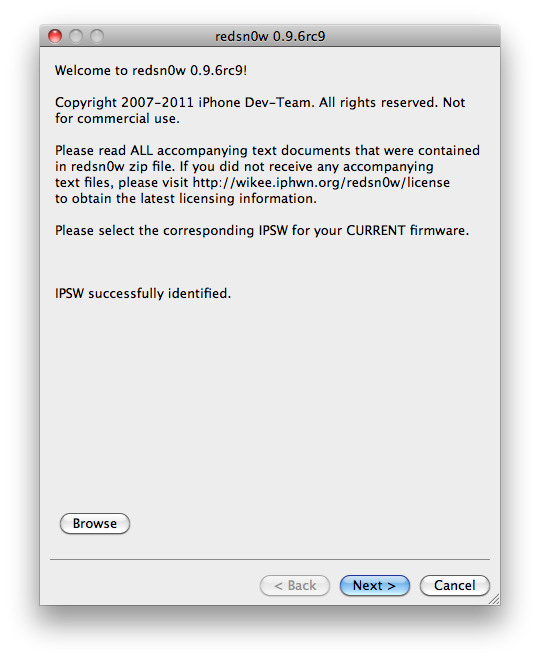
Once RedSn0w opens click the Browse button


Step Five
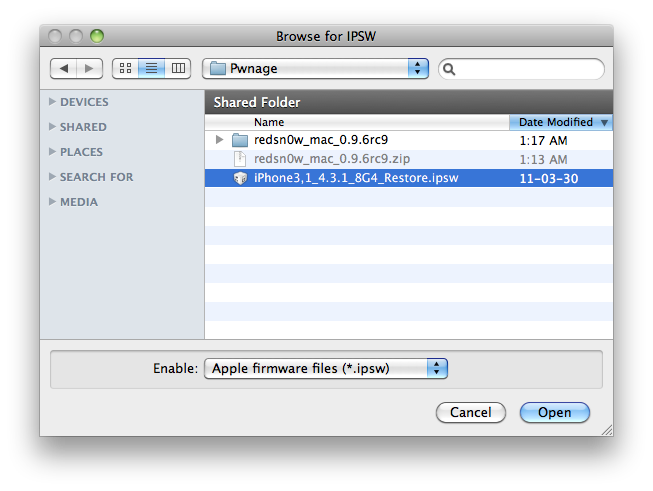
Select the 4.3.1 firmware ipsw we placed in the Pwnage folder on our desktop then click Open.


Step Six
Once the firmware has been verified click the Next button to continue.


Step Seven
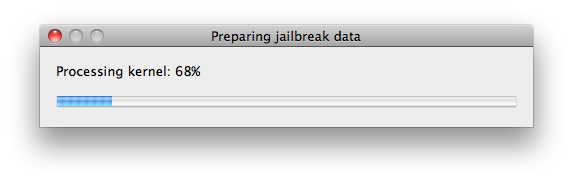
RedSn0w will now prepare the jailbreak data


Step Eight
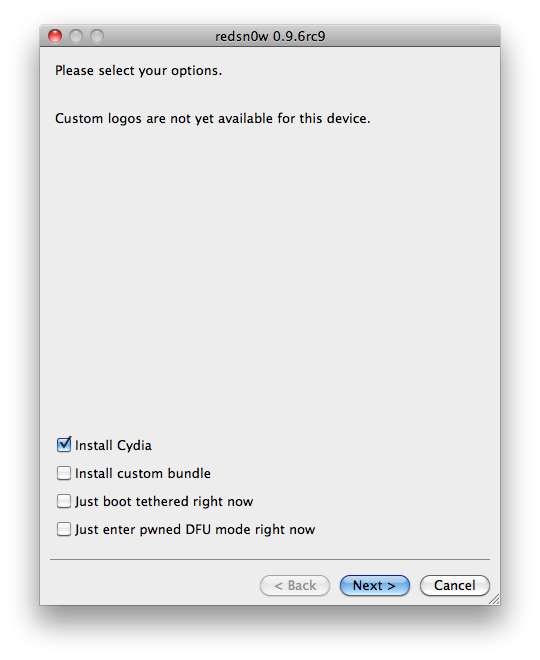
From this window you can select the jailbreak options you would like.


Make sure Cydia is selected and click the Next button to continue

Step Nine
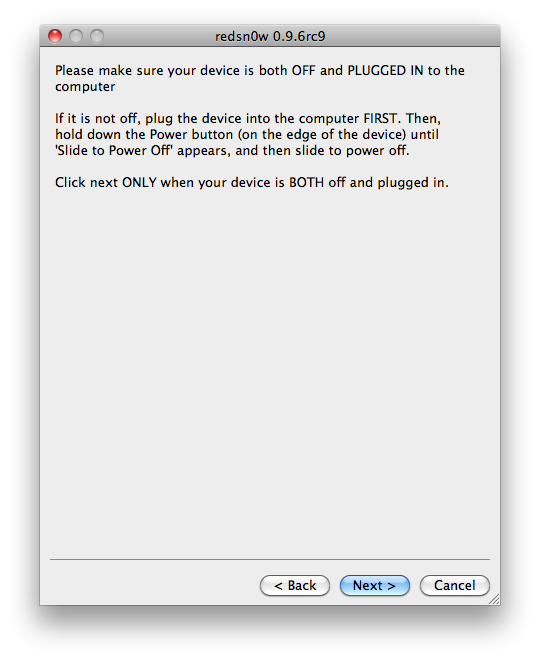
Please plug your iPhone into the computer and make sure its OFF then click the Next button


Step Ten
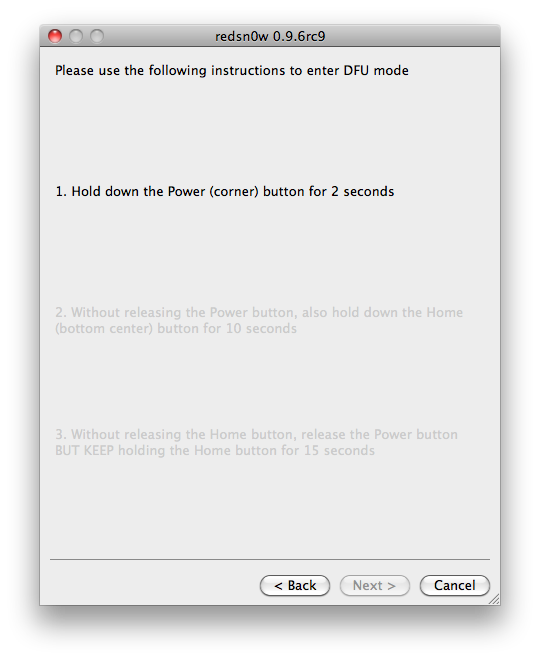
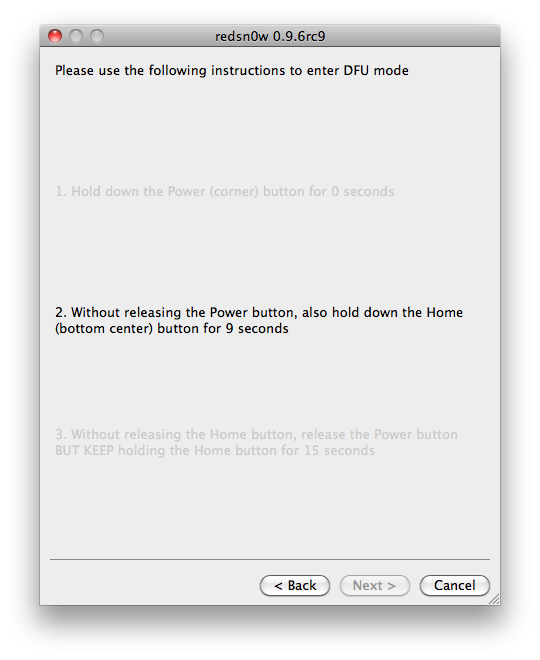
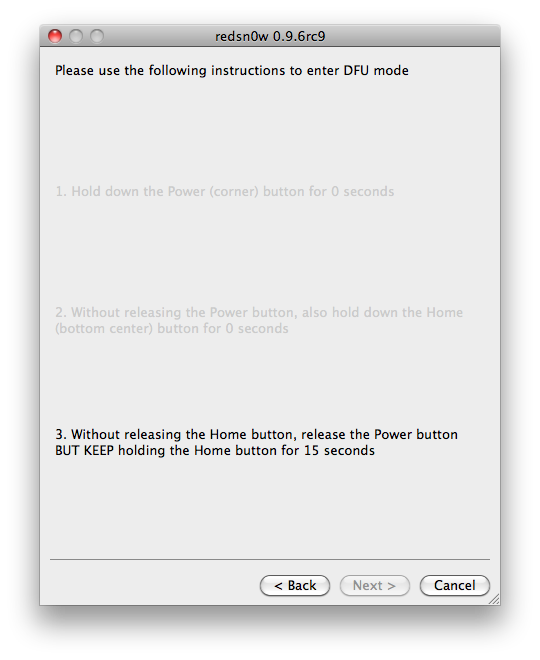
RedSn0w will now guide you through the steps to get into DFU mode.


Hold down both the Home button and the Power button for 10 seconds.


Release the Power button and continue holding the Home button until RedSn0w detects the device.


Step Eleven
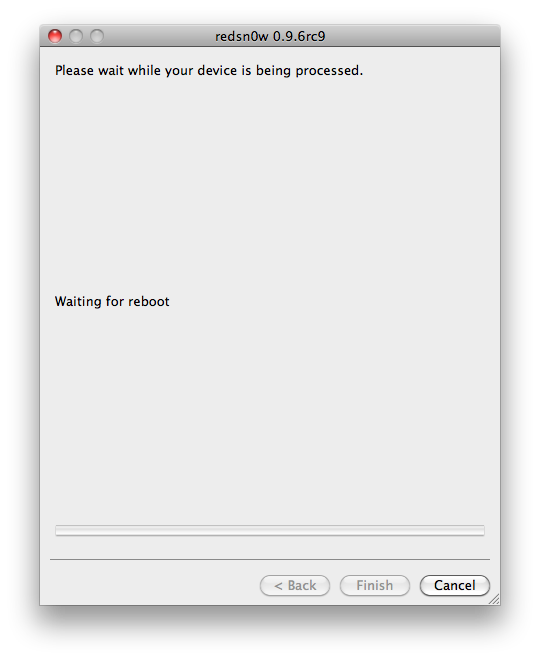
Your iPhone will now reboot


Step Twelve
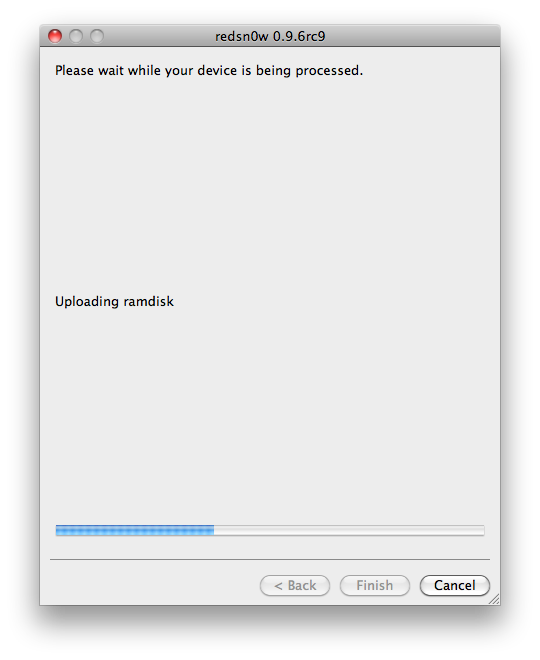
RedSn0w will then begin uploading the new RAM Disk and Kernel.


Step Thirteen
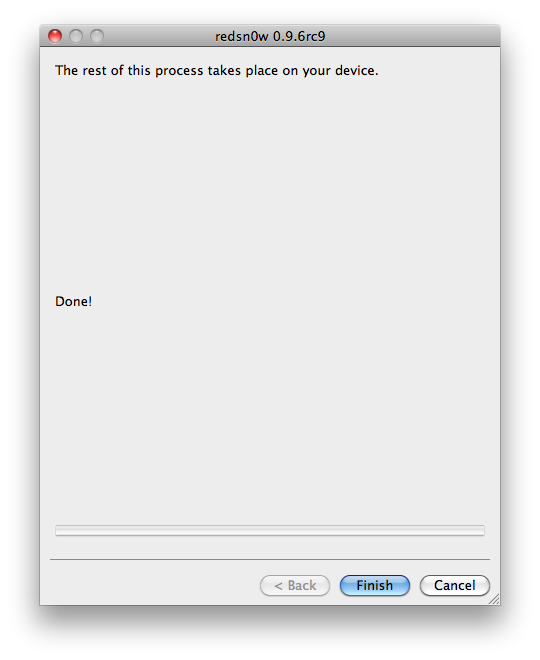
Once this is complete you will be notified that RedSn0w is done. Click the Finish button. When your iPhone finishes rebooting (5 minutes or so) it will be jailbroken with Cydia on the SpringBoard.


*As usual a big thanks to the iPhone Dev-Team and I0n1c for their hard work and contribution to the iPhone community.

How to Update Your iPhone 4 Without Upgrading the Baseband (Mac) [4.3.1]


This tutorial will show you how to upgrade your iPhone 4 to iOS 4.3.1 without upgrading its baseband using TinyUmbrella for Mac.

Please Note: This ONLY Works with the iPhone 4!

Step One
Download TinyUmbrella from here. Also make sure to download the iPhone 4 iOS 4.3.1 firmware which you can find here.


Step Two
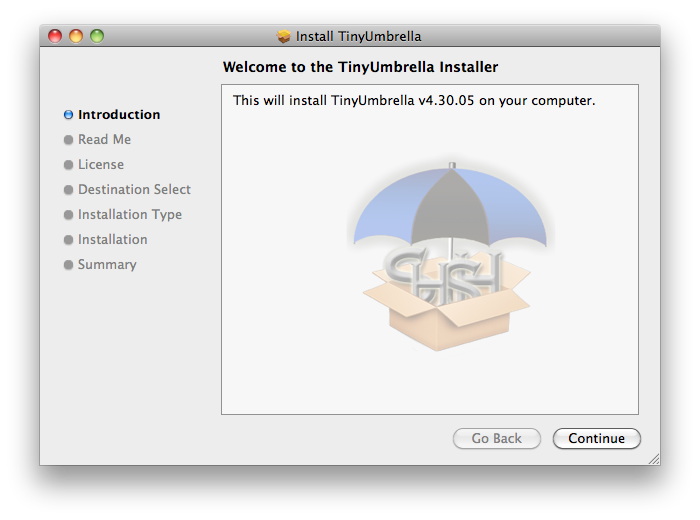
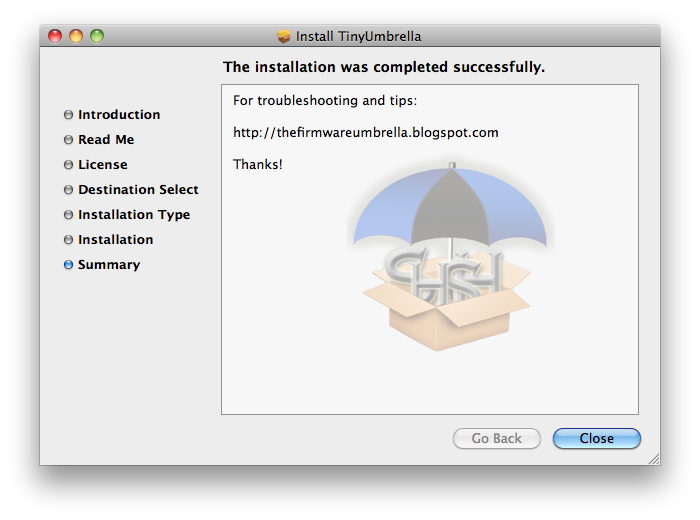
Double click the downloaded TinyUmbrella pkg file to and follow the prompts to install the application.


Step Three
Double click to launch TinyUmbrella from your Applications folder.


Step Four
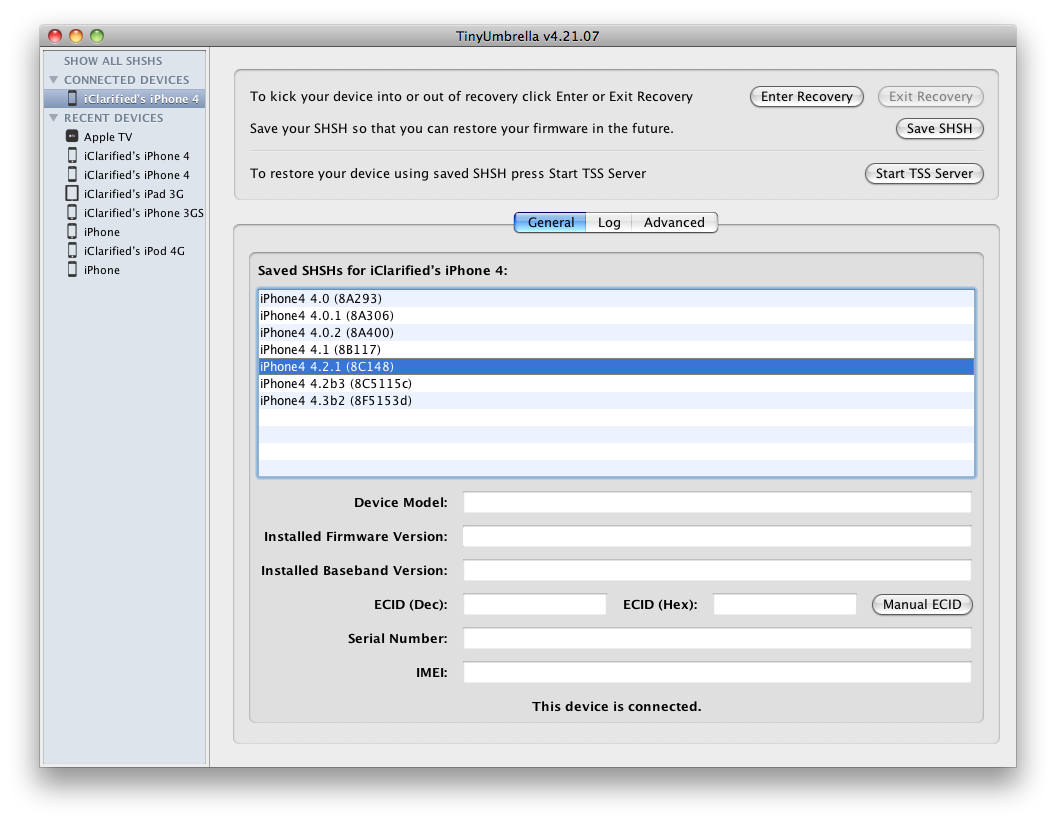
Make sure the device is connected, and Umbrella has detected the type of device and its firmware.


**If you haven't already saved your iOS 4.3.1 SHSH blobs then click Save SHSH. Make sure they successfully save before continuing.

Step Five
Hit Start TSS Server and make sure you receive no errors.


Once The TSS Server is "running" successfully, umbrella will kill iTunes. Leave TinyUmbrella Open.

If you do receive an error, DO NOT continue. Your restore will not work if the TSS server cannot be started.

Step Six
Open iTunes by doubling clicking its icon in the dock.


Hold down the Option key and click Restore


Select your iPhone 4.3.1 firmware file from the popup window that appears and click Open.


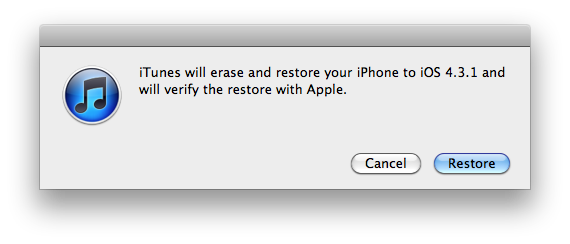
Click Restore to begin restoring your device.


Step Seven
iTunes should give you error 1013. This is what we wanted, as it notes the baseband has not updated :) ClickOk and close iTunes.

If you get a 16XX error then try entering DFU and go to step 5.
If your restore does NOT end in a 1013, it means your baseband was updated. This is likely because you did not have the TSS server running OR you updated without TinyUmbrella OR you are working with a device OTHER than iPhone 4.


Step Eight
Fix Recovery in TinyUmbrella is currently not working for the latest firmware versions. Download the standalone Fix Recovery to kick your device out of recovery mode on 4.3.1 from
here


Extract the file by double clicking on the downloaded archive.


Double click the fixrecovery43 program from within the folder we just extracted. During this process you will notice scrolling text on your iPhone 4.


Step Nine
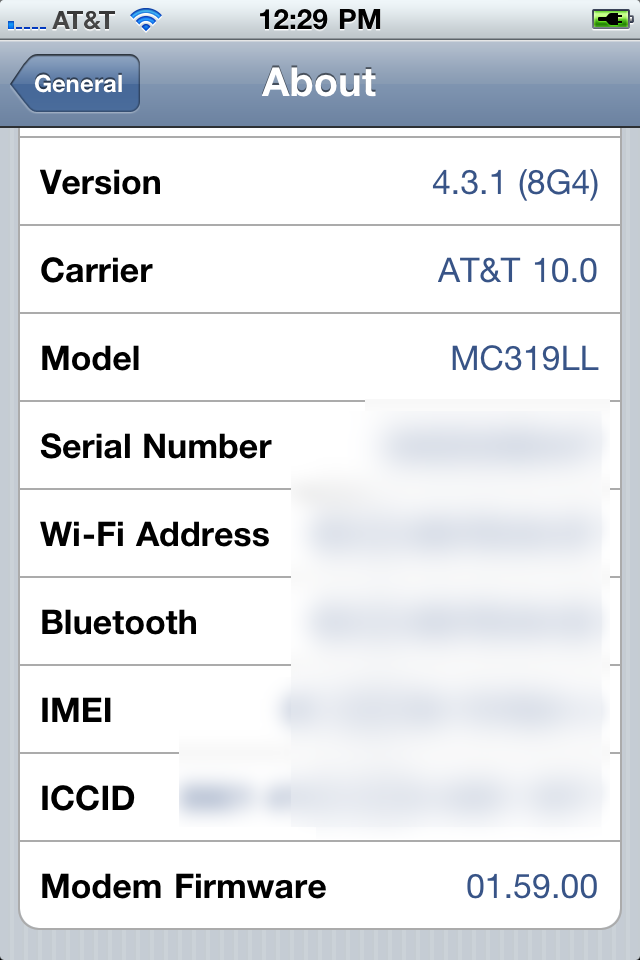
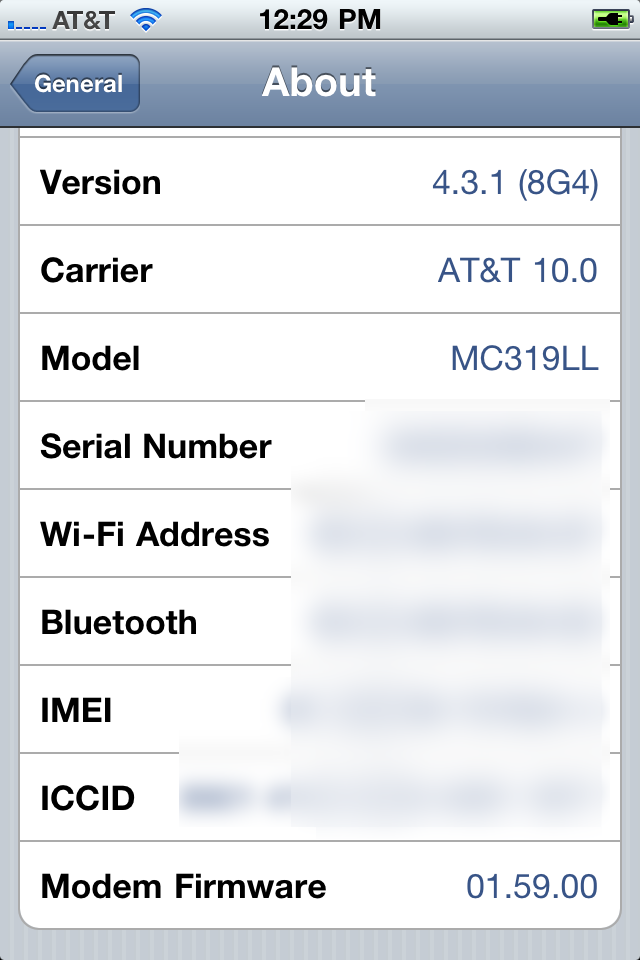
Your iPhone will now be on 4.3.1 without having upgraded the baseband! If you have the 1.59.00 baseband you can now unlock using this tutorial).


**Thanks to semaphore for his work on this tool

How to Update Your iPhone 4 Without Upgrading the Baseband (Windows) 4.3.1


This tutorial will show you how to upgrade your iPhone 4 to iOS 4.3.1 without upgrading its baseband using TinyUmbrella for Windows.


Please Note: This ONLY Works with the iPhone 4!

Step One
Download TinyUmbrella from here Also make sure to download the iPhone 4 iOS 4.3.1 which you can find here.


Step Two
Double click the downloaded TinyUmbrella.exe file.


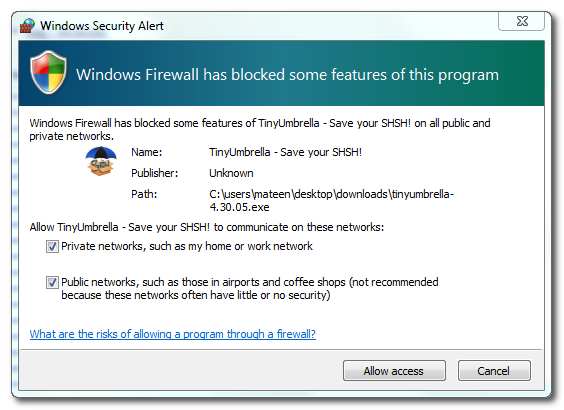
If you get a Windows Firewall notification, check both boxes and click Allow Access.


Step Three
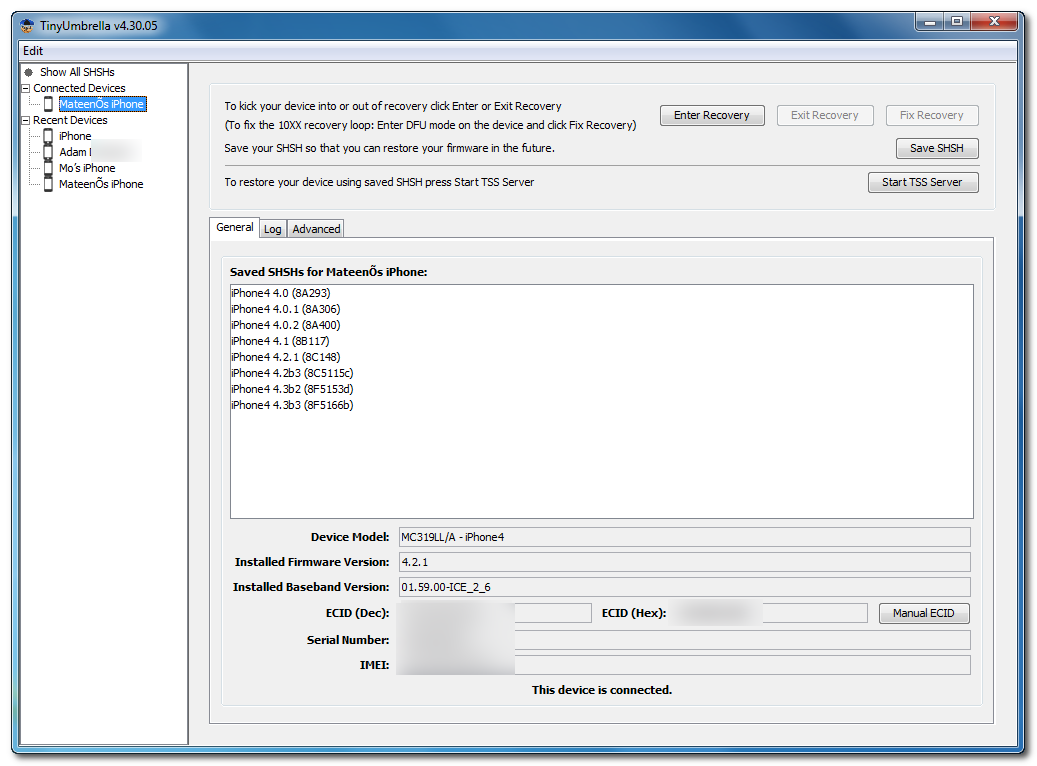
Make sure the device is connected, and Umbrella has detected the type of device and its firmware.


**If you haven't already saved your iOS 4.3.1 SHSH blobs then click Save SHSH. Make sure they successfully save before continuing.


Step Four
Hit Start TSS Server and make sure you receive no errors.


Once The TSS Server is "running" successfully, umbrella will kill iTunes. Leave TinyUmbrella Open. You can double check to see if the TSS server is running under the Log tab.


If you do receive an error, DO NOT continue. Your restore will not work if the TSS server cannot be started.

Step Five
Open iTunes by doubling clicking its icon.


Hold down the Shift key and click Restore


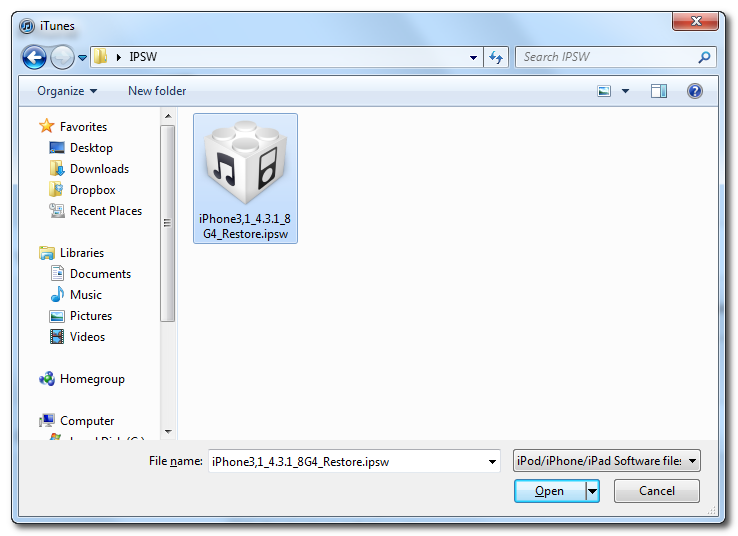
Select your iPhone 4.3.1 firmware file from the popup window that appears and click Open.


Click Restore to begin restoring your device.


Step Six
iTunes should give you error 1013. This is what we wanted, as it notes the baseband has not updated :) Click Ok and close iTunes.


If you get a 16XX error then try entering DFU and go to step 5.
If your restore does NOT end in a 1013, it means your baseband was updated. This is likely because you did not have the TSS server running OR you updated without TinyUmbrella OR you are working with a device OTHER than iPhone 4.


Step Seven
Place your iPhone into DFU mode by holding down both the Power and Home buttons for ten seconds, then release the Power button and continue holding the Home button for another 5 seconds.


Step Eight
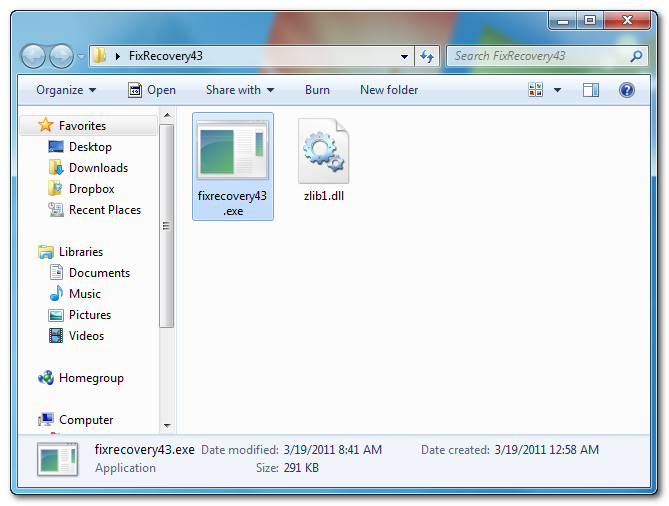
Fix Recovery in TinyUmbrella is currently not working. Download this standalone .exe file to fix recovery on 4.3.1. Extract the file and double click on fixrecovery43.exe. A command prompt will open, and the program will go through the process. During this time, you will notice scrolling text on your iPhone 4.


Step Nine
Your iPhone will now be on 4.3.1 with the 1.59.00 baseband! (Which means you can now unlock using this tutorial)


**Thanks to semaphore for his work on this tool

Bài đăng phổ biến