Thứ Bảy, 12 tháng 2, 2011

How to Change or Remove the Animated Greenpois0n Boot Logo


These are instructions on how to change or remove the animated boot logo installed by performing the Greenpois0n jailbreak.

Step One
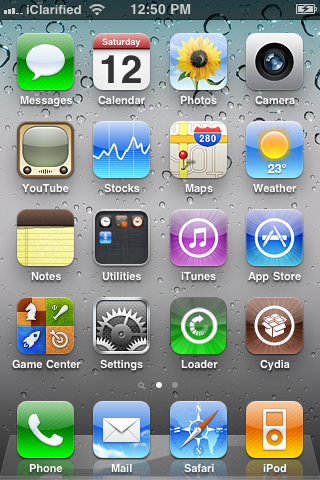
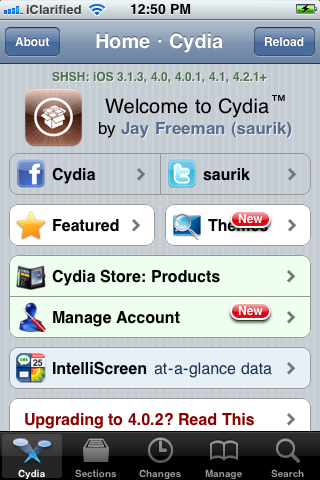
Launch Cydia from your Springboard.


Step Two
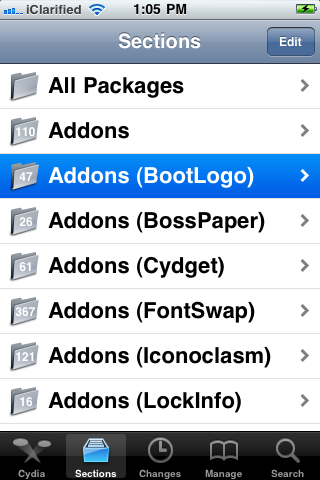
Press to select the Sections tab from the bottom of the screen.


Step Three
Tap to select Addons (BootLogo) from the list of Sources.


Step Four
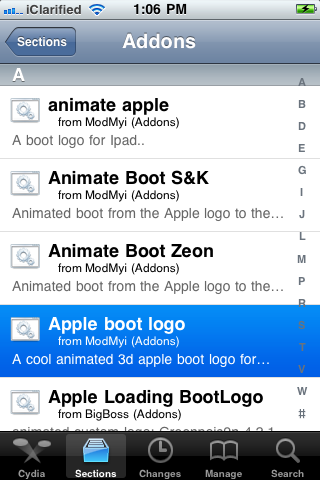
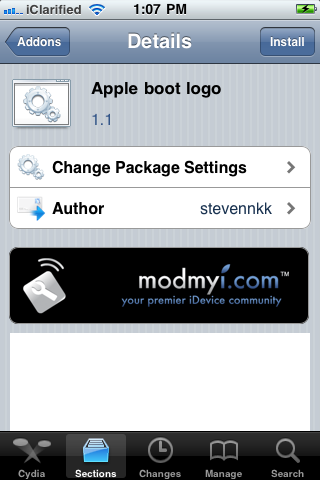
Press to choose Apple boot logo from the list of Packages.


Step Five
Press the Install button at the top right of the screen.


Step Six
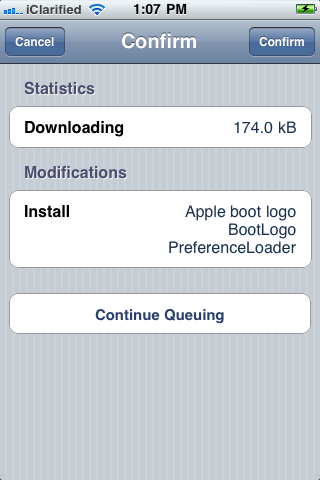
Press the Confirm button to begin installation.


Step Seven
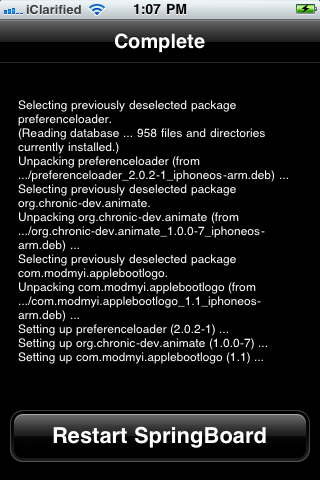
Once installation has completed successfully press the large Restart Springboard button.


Step Eight
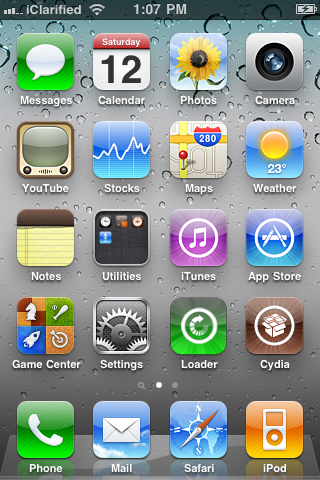
Once you have been resprung press to launch Settings from your Springboard.


Step Nine
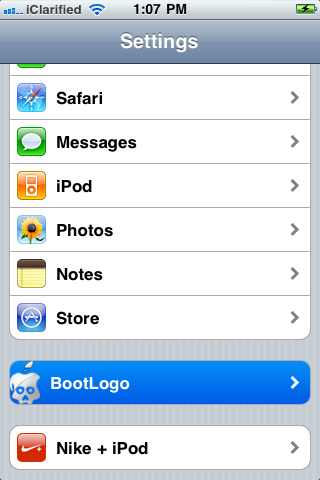
Tap to select BootLogo from the Settings Menu.


Step Ten
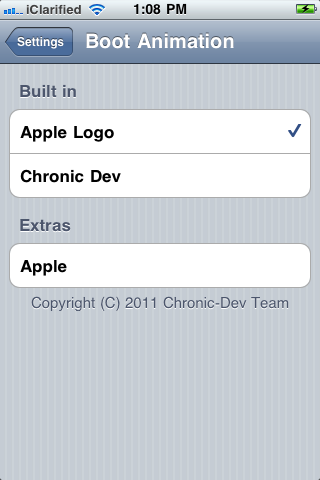
Choose Apple Logo from BootLogo to display the normal Apple logo during boot.

*Notice that any additional animated logos you have installed from the Addons (BootLogo) category in Cydia will appear under Extras for easy access.

Chủ Nhật, 6 tháng 2, 2011

Greenpois0n for Windows Has Been Released!


The Chronic Dev-Team has released Greenpois0n for Windows which brings an untethered jailbreak to iOS 4.2.1 devices.

You can download the new version from here or here.

You can find our Windows tutorials here:
iPhone (Windows)
iPod Touch (Windows)
iPad (Windows)

You can find our Mac tutorials here:
iPhone (Mac)
iPod Touch (Mac)
iPad (Mac)


Thứ Bảy, 5 tháng 2, 2011

How to Update Your iPhone 4 Without Upgrading the Baseband (Windows) [42.1]


This tutorial will show you how to upgrade your iPhone 4 to iOS 4.2.1 without upgrading its baseband using TinyUmbrella for Windows.

Please Note: This ONLY Works with the iPhone 4!

Step One
Download TinyUmbrella from here Also make sure to download the iPhone 4 iOS 4.2.1 which you can find here.


Step Two
Double click the downloaded TinyUmbrella.exe file.


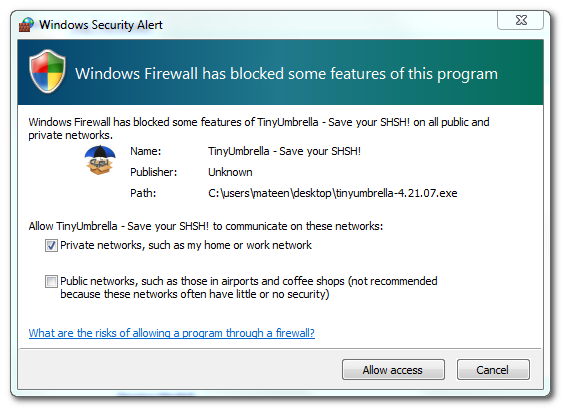
If you get a Windows Firewall notification, check both boxes and click Allow Access.


Step Three
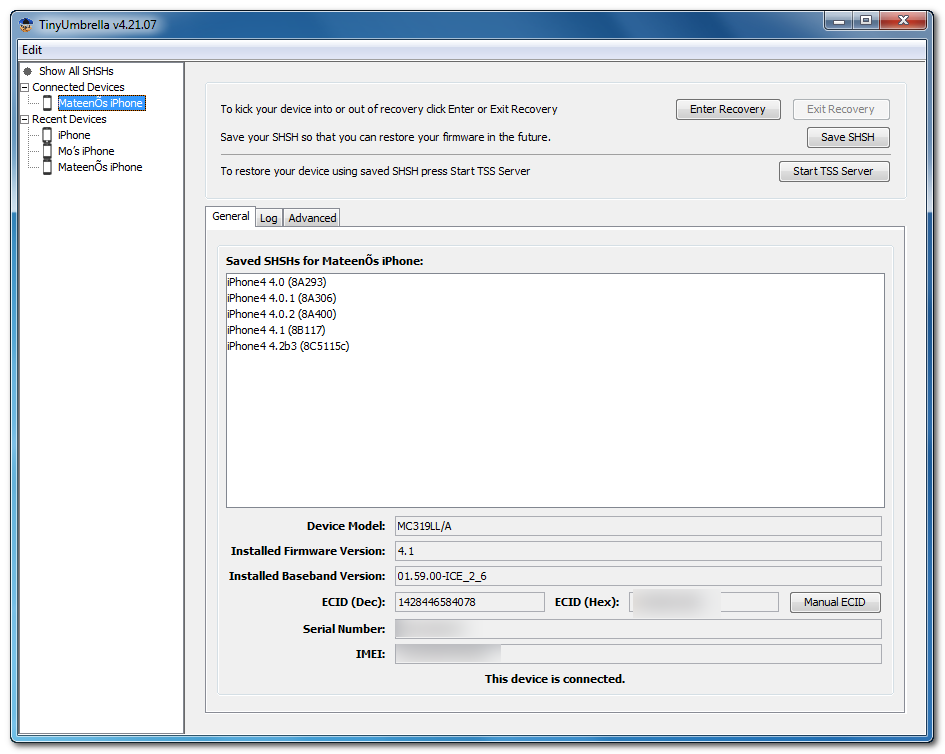
Make sure the device is connected, and Umbrella has detected the type of device and its firmware.


**If you haven't already saved your iOS 4.2.1 SHSH blobs then click Save SHSH. Make sure they successfully save before continuing.


Step Four
Hit Start TSS Server and make sure you receive no errors.


Once The TSS Server is "running" successfully, umbrella will kill iTunes. Leave TinyUmbrella Open. You can double check to see if the TSS server is running under the Log tab.


If you do receive an error, DO NOT continue. Your restore will not work if the TSS server cannot be started.

Step Five
Open iTunes by doubling clicking its icon in the dock.


Hold down the Shift key and click Restore


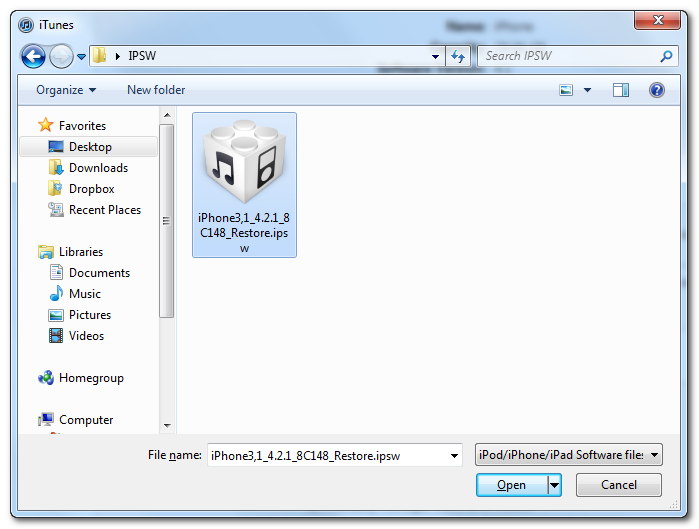
Select your iPhone 4.2.1 firmware file from the popup window that appears and click Open.


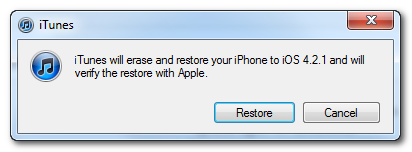
Click Restore to begin restoring your device.


Step Six
iTunes should give you error 1013. This is what we wanted, as it notes the baseband has not updated :) ClickOk and close iTunes.

If you get a 16XX error then try entering DFU and go to step 5.
If your restore does NOT end in a 1013, it means your baseband was updated. This is likely because you did not have the TSS server running OR you updated without TinyUmbrella OR you are working with a device OTHER than iPhone 4.


Step Seven
Place your iPhone into DFU mode by holding down both the Power and Home buttons for ten seconds, then release the Power button and continue holding the Home button for another 5 seconds.


Step Eight
You are now ready to follow our Greenpois0n tutorial which will jailbreak your device and bring it out of DFU mode. **Note: You do not need to put the device into DFU mode after press the Jailbreak button in Greenpois0n as we have already done this :)


Step Nine
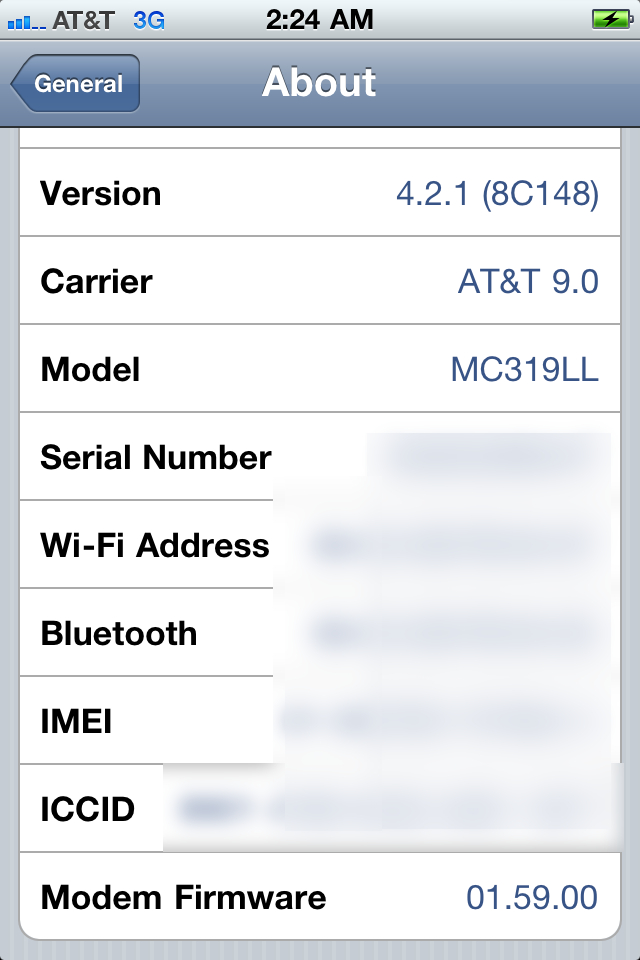
Your iPhone will now be on 4.2.1 with the 1.59.00 baseband! (Which means you can now unlock using this tutorial)


**Thanks to semaphore for his work on this tool

How to Jailbreak Your iPhone 3GS, iPhone 4 Using Greenpois0n (Windows)


These are instructions on how to jailbreak your iPhone 3GS and iPhone 4 using Greenpois0n for Windows. Greenpois0n supports the iOS 4.1 and iOS 4.2.1 firmware. Use
Limera1n if you want to jailbreak iOS 4.0, iOS 4.0.1, iOS 4.0.2.

Remember: Do not update to iOS 4.2.1 if you need the unlock. Ultrasn0w does not support that baseband yet. The only exception is the iPhone 4. You can update to iOS 4.2.1 without upgrading your baseband by following this tutorial.

Step One
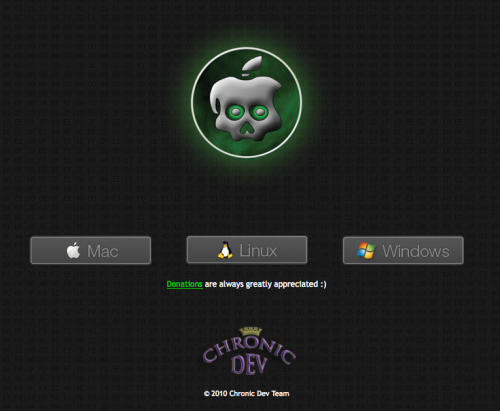
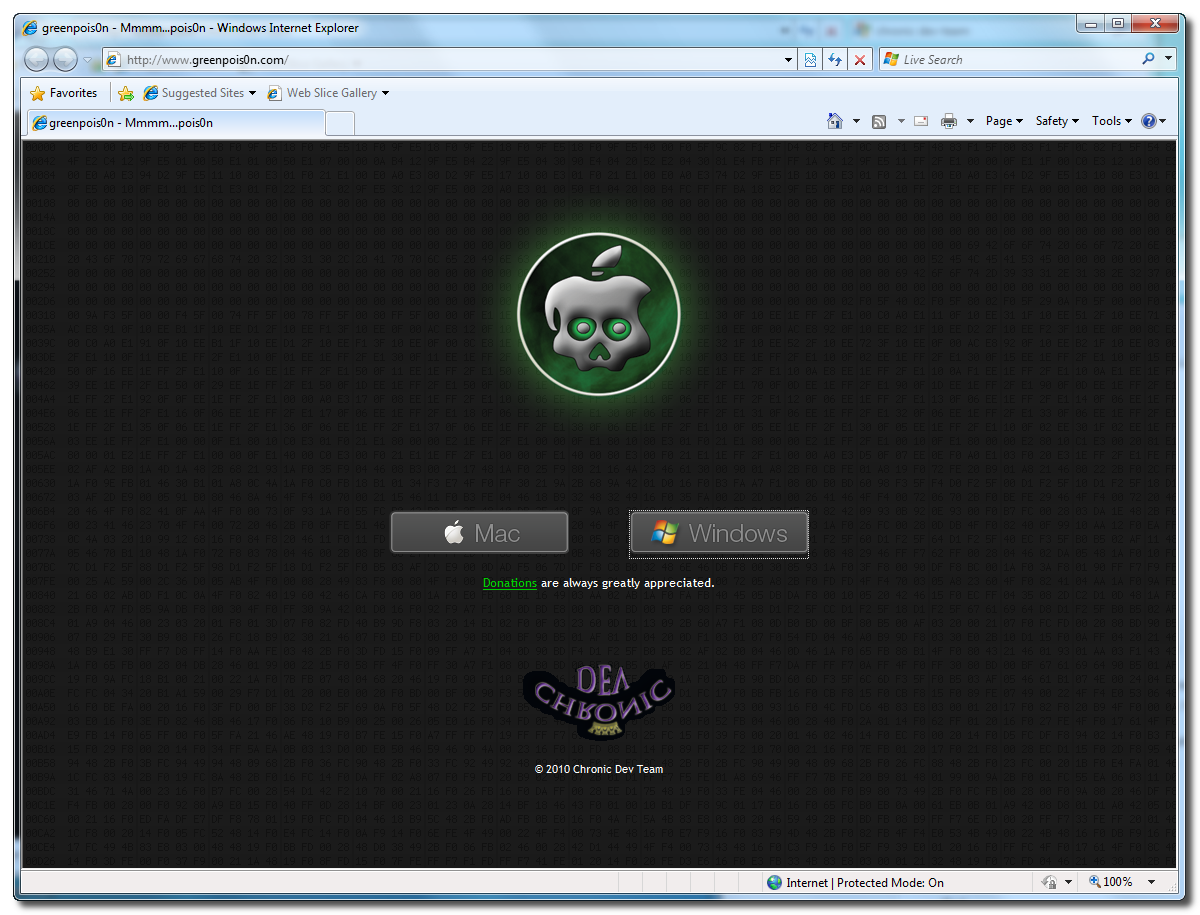
Open your web browser of choice and navigate to http://www.greenpois0n.com. Click the Windows link at the bottom of the screen.


Step Two
When prompted save the download to your desktop


Step Three
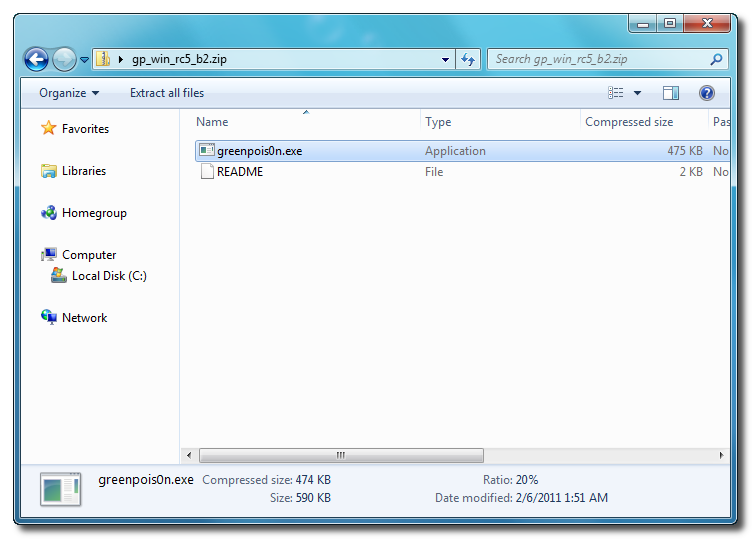
Double click the downloaded gp_win_rc5_b2.zip file then drag the greenpois0n.exe file to the desktop. Doublegreenpois0n.exe from the desktop to launch the application


Step Four
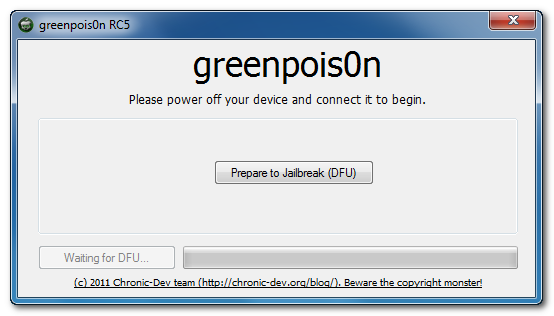
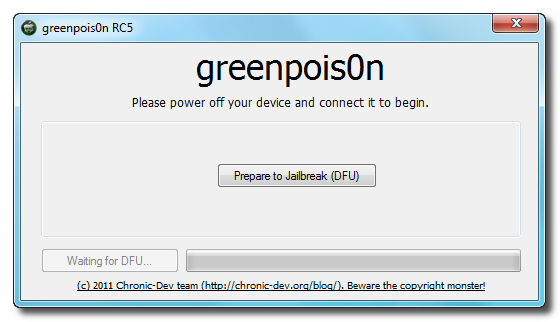
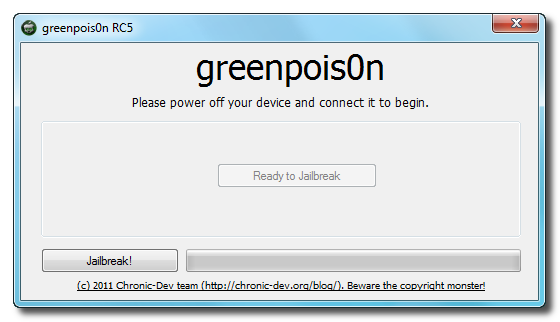
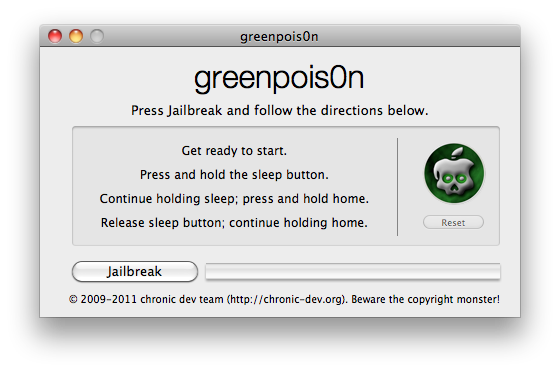
Power off your iPhone then click the large Prepare to Jailbreak (DFU) button


Step Five
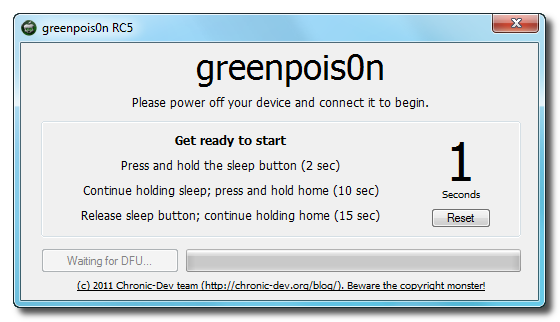
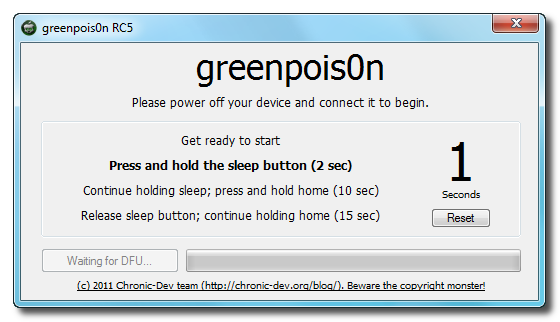
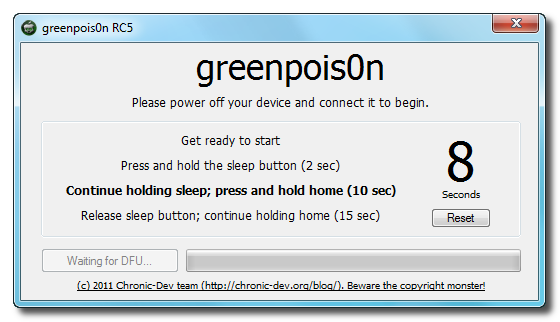
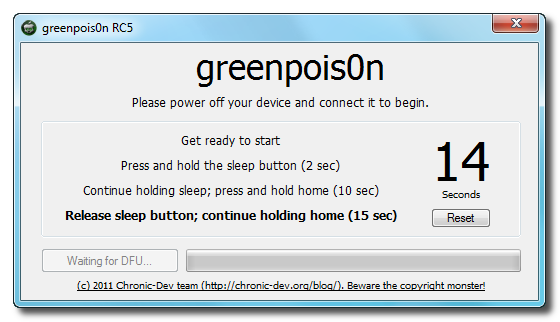
You will now be instructed on how to place your iPhone into DFU mode.


You will be asked to press and hold the sleep button for 2 seconds.


Continue holding sleep; press and hold home for 10 seconds.


Release sleep button; continue holding home for 15 seconds.


Step Six
Once your iPhone is successfully in DFU mode you may click the Jailbreak button.


Step Seven
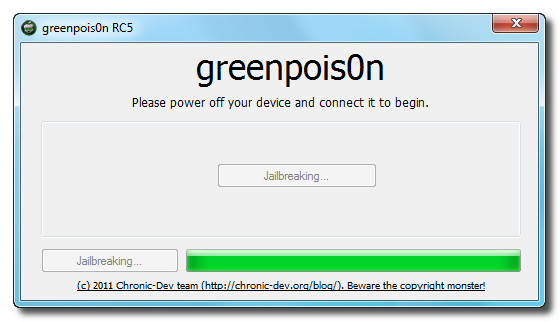
Greenpois0n will now jailbreak your device


Step Eight
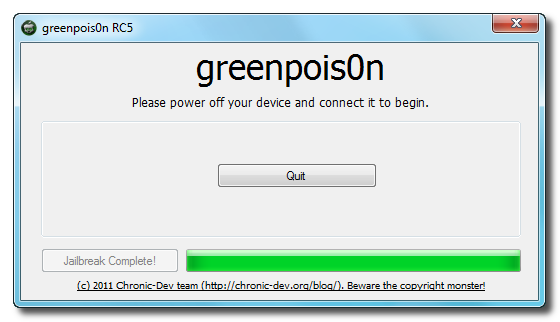
Click the Quit button once the software application has completed.


You'll notice some verbose mode text scrolling on your device.

Step Nine
After the iPhone restarts you'll notice a new Loader application on your Springboard. Press to launch it.


Step Ten
Press to select Cydia then press the large Install Cydia button that appears.


Step Eleven
Once Cydia has installed successfully you can remove Loader by pressing the Options button then the large red Remove Loader.app button.


Step Twelve
Restart your iPhone then run Cydia. Let it do all the necessary updates then follow our Unlock tutorial if possible for your device.


***A big thanks goes everyone who made this jailbreak possible.

How to Update Your iPhone 4 Without Upgrading the Baseband (Mac) [4.2.1]


This tutorial will show you how to upgrade your iPhone 4 to iOS 4.2.1 without upgrading its baseband using TinyUmbrella for Mac.


Please Note: This ONLY Works with the iPhone 4!

Step One
Download TinyUmbrella from here Also make sure to download the iPhone 4 iOS 4.2.1 which you can find here.


Step Two
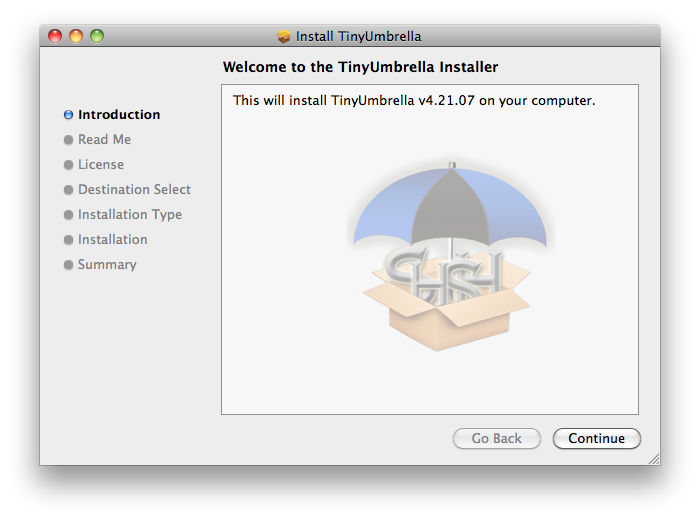
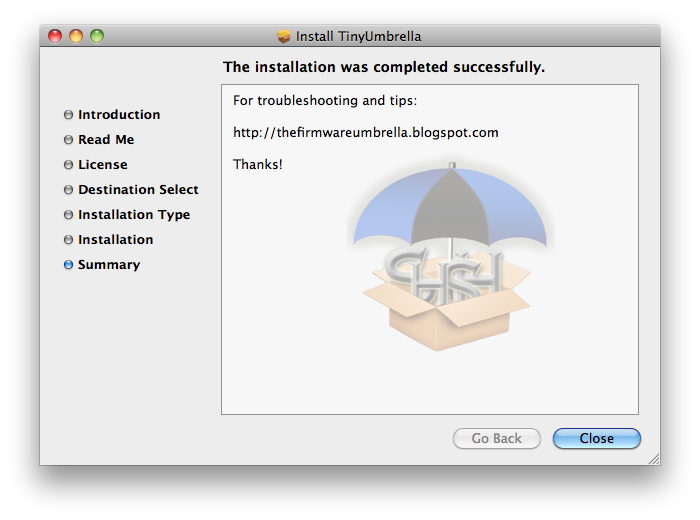
Double click the downloaded TinyUmbrella pkg file to and follow the prompts to install the application.


Step Three
Double click to launch TinyUmbrella from your Applications folder.


Step Four
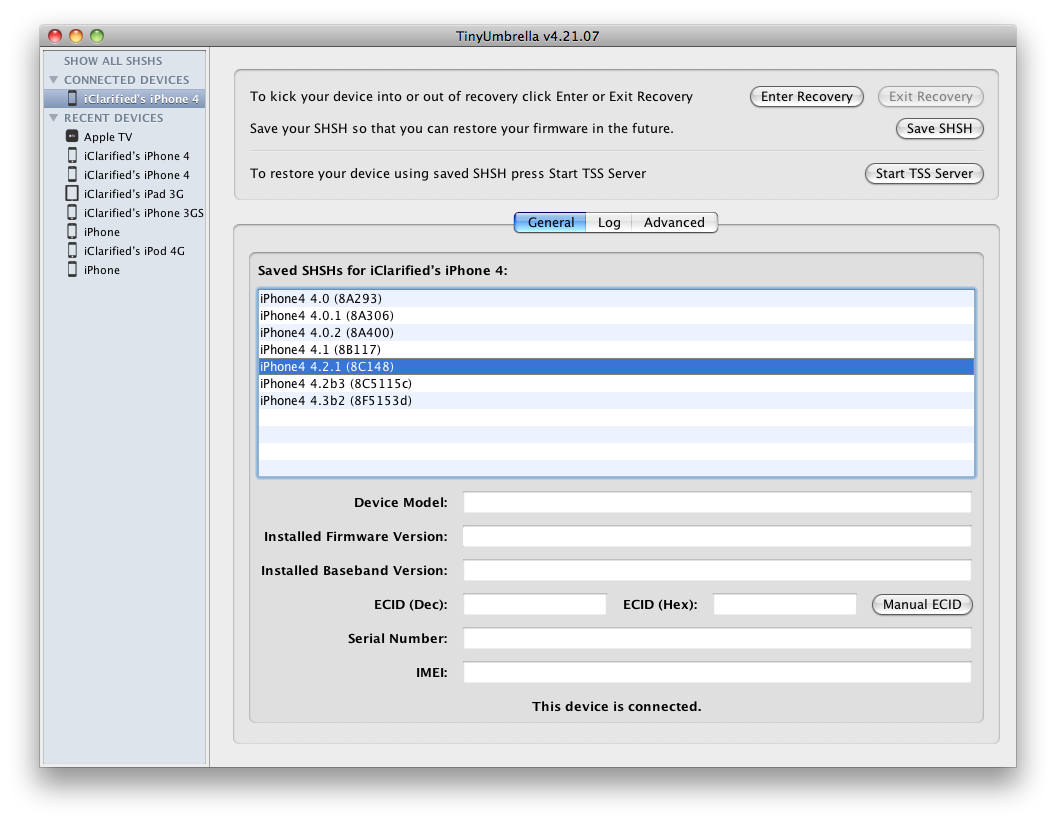
Make sure the device is connected, and Umbrella has detected the type of device and its firmware.


**If you haven't already saved your iOS 4.2.1 SHSH blobs then click Save SHSH. Make sure they successfully save before continuing.


Step Five
Hit Start TSS Server and make sure you receive no errors.


Once The TSS Server is "running" successfully, umbrella will kill iTunes. Leave TinyUmbrella Open.

If you do receive an error, DO NOT continue. Your restore will not work if the TSS server cannot be started.

Step Six
Open iTunes by doubling clicking its icon in the dock.


Hold down the Option key and click Restore


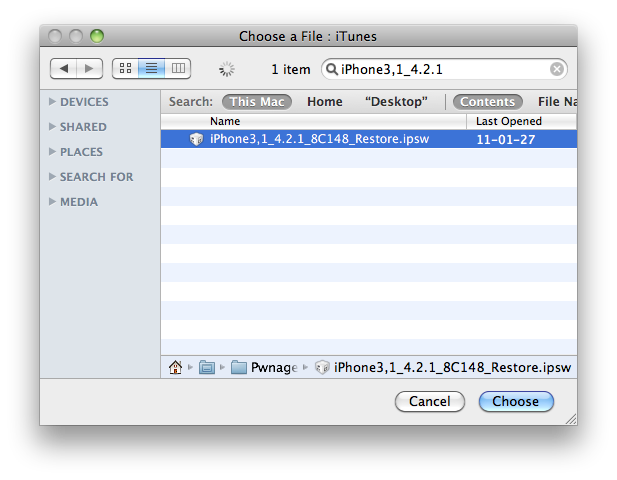
Select your iPhone 4.2.1 firmware file from the popup window that appears and click Open.


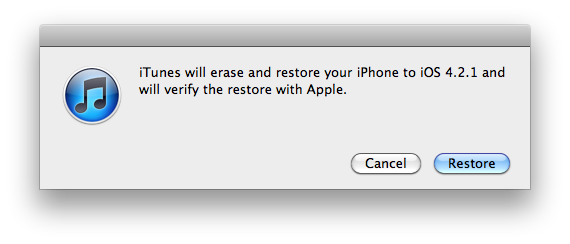
Click Restore to begin restoring your device.


Step Seven
iTunes should give you error 1013. This is what we wanted, as it notes the baseband has not updated :) ClickOk and close iTunes.

If you get a 16XX error then try entering DFU and go to step 5.
If your restore does NOT end in a 1013, it means your baseband was updated. This is likely because you did not have the TSS server running OR you updated without TinyUmbrella OR you are working with a device OTHER than iPhone 4.


Step Eight
Place your iPhone into DFU mode by holding down both the Power and Home buttons for ten seconds, then release the Power button and continue holding the Home button for another 5 seconds.


Step Nine
You are now ready to follow our Greenpois0n tutorial which will jailbreak your device and bring it out of DFU mode. **Note: You do not need to put the device into DFU mode after press the Jailbreak button in Greenpois0n as we have already done this :)


Step Ten
Your iPhone will now be on 4.2.1 with the 1.59.00 baseband! (Which means you can now unlock using this tutorial)


**Thanks to semaphore for his work on this tool

Bài đăng phổ biến